A walk through every corner of the app — launching a survey, reading the report it produces, and running the credits, team and billing behind it. Screenshots are pulled straight from the live product.
🧭 8 chapters🖼️ 30 real screens⏱️ ~10 min read
👋
Start here
The short version of what Org360 is, and how you get in.
🎯 What Org360 does
Org360 runs 360°-style feedback and employee-engagement surveys, then turns the raw answers into an AI-written report: an overall “archetype” for the team, domain-by-domain scores, a self-vs-others radar chart, strengths, opportunities, and a six-month development plan — no spreadsheet wrangling required.
Everything in the app is organized around three things: surveys you launch, reports those surveys produce, and credits that pay for each launch.
🔐 Signing in
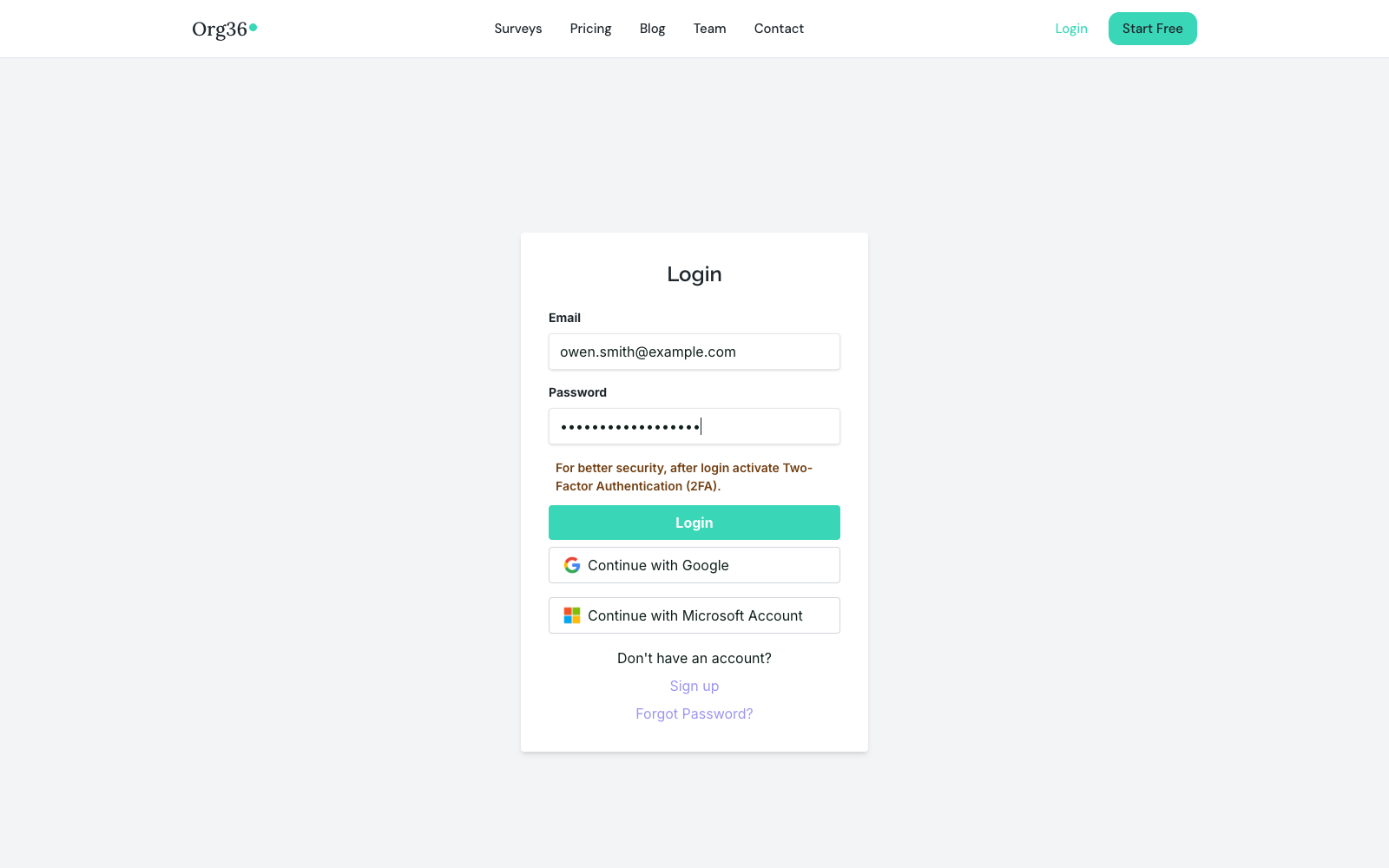
Email and password, or continue with Google / Microsoft. Two-factor authentication is available but off by default — a banner reminds you to turn it on until you do (see Password & 2FA).
org360.app/login
The login screen — email/password, Google, or Microsoft.
📊
Dashboard
Home base after login. Three tabs — Surveys, Insights, Credits — cover everything you own.
📋 Surveys tab
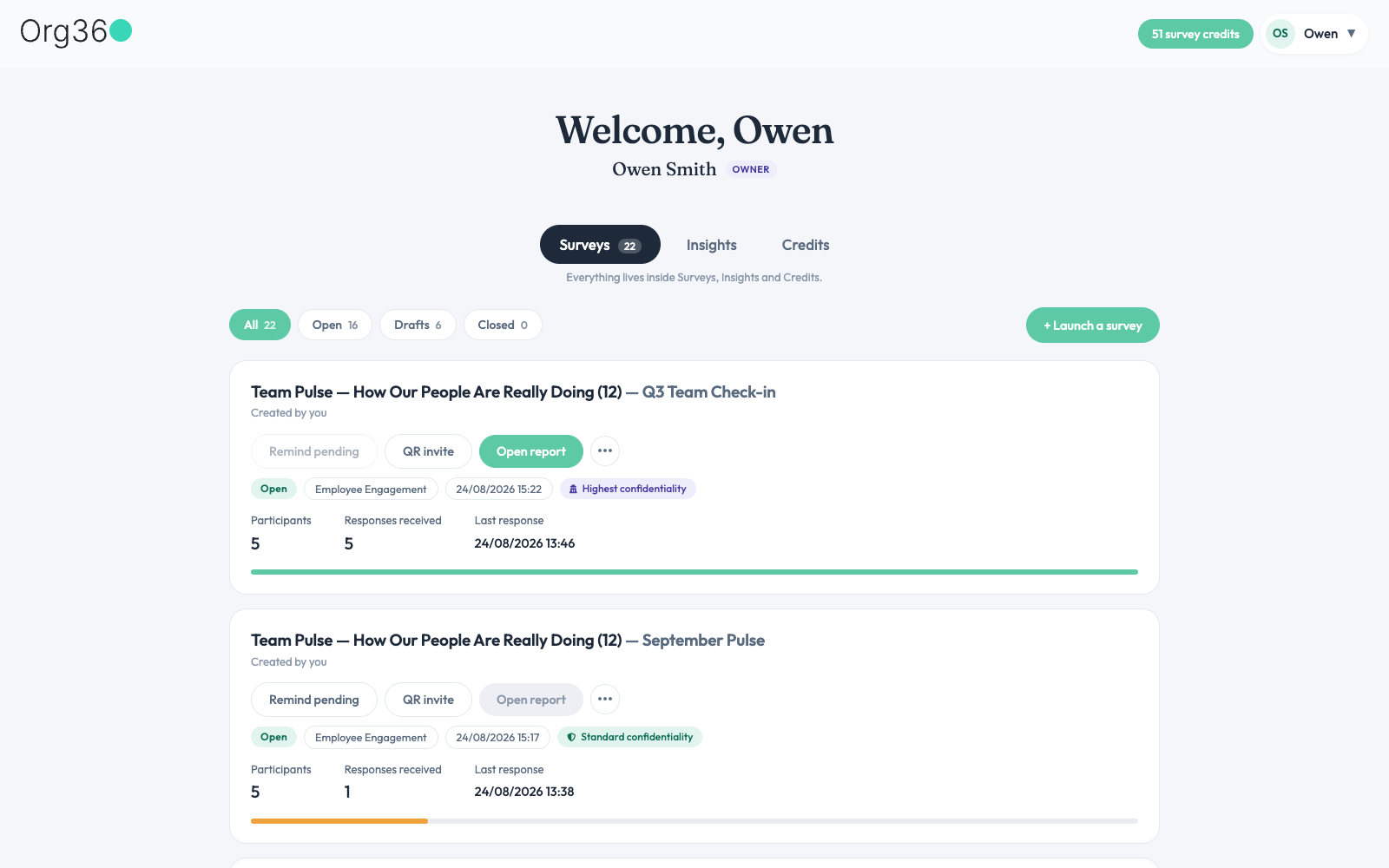
Every survey you've touched, filterable by AllOpenDraftsClosed — each chip shows a live count. Each card carries its status, category, confidentiality level, and a running tally of participants, responses received, and last response time, with a progress bar underneath.
org360.app/dashboard
Surveys tab — open survey cards with response progress.
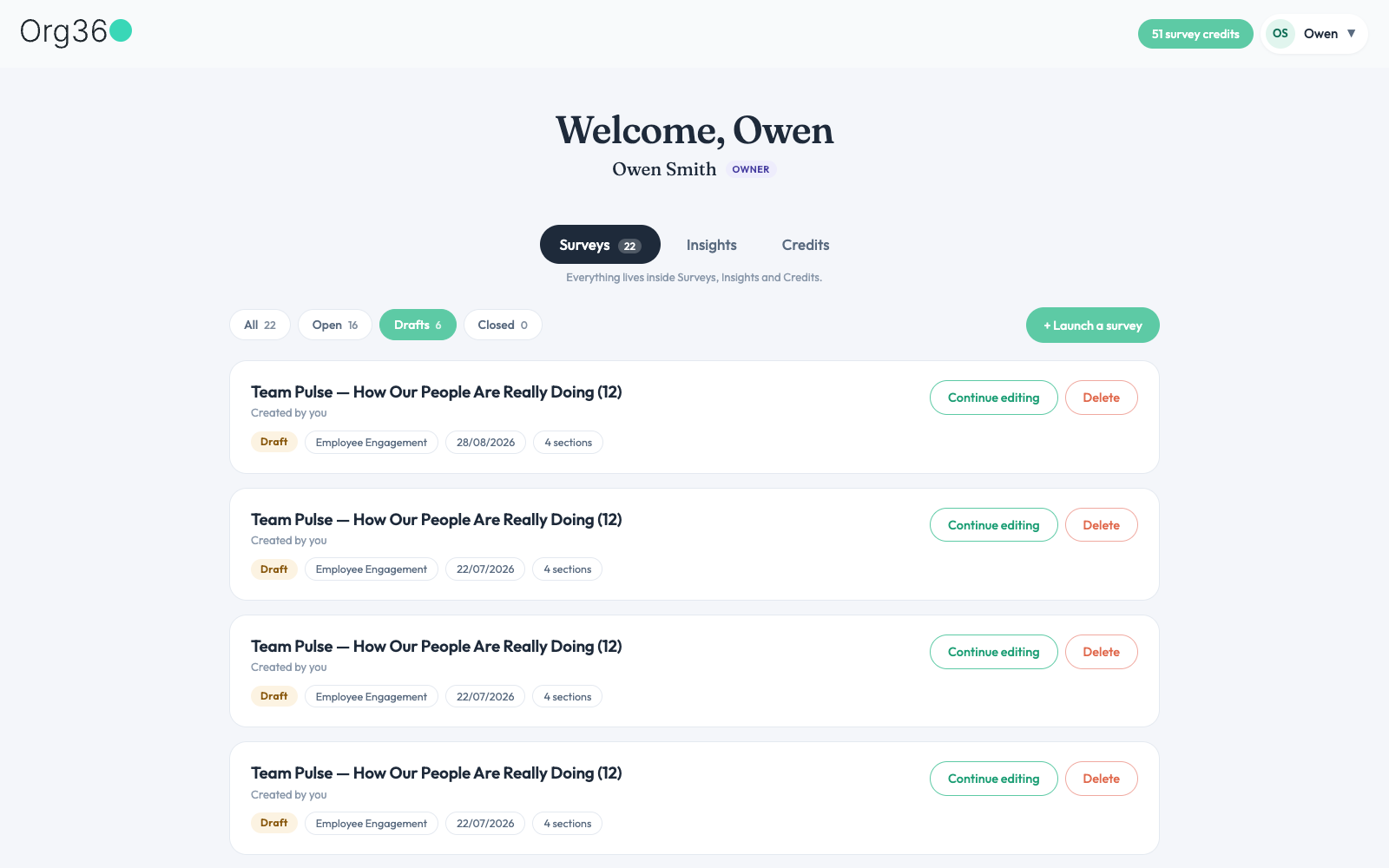
Open cards get three quick actions — Remind pending, QR invite, and Open report — plus a ⋯ menu for the rest. Draft cards trade those for Continue editing and Delete, since nothing has gone out yet.
org360.app/dashboard
Filtered to Drafts — safe to edit or delete, nothing has been sent.
📈 Insights tab
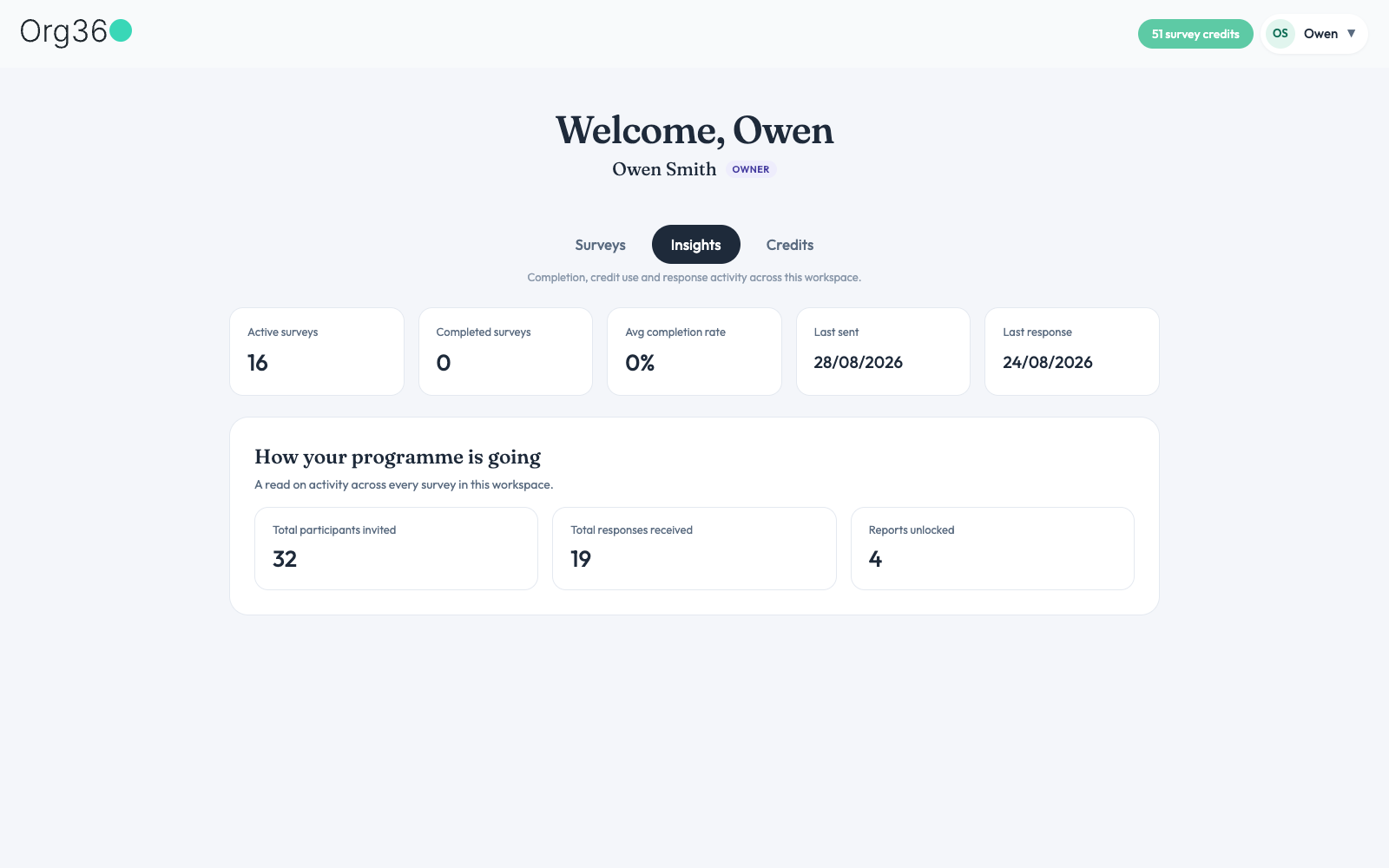
A workspace-wide rollup: active and completed surveys, average completion rate, when a survey was last sent and last answered, plus lifetime totals for participants invited, responses received, and reports unlocked.
org360.app/dashboard
Insights — “How your programme is going”, at a glance.
💳 Credits & plan tab
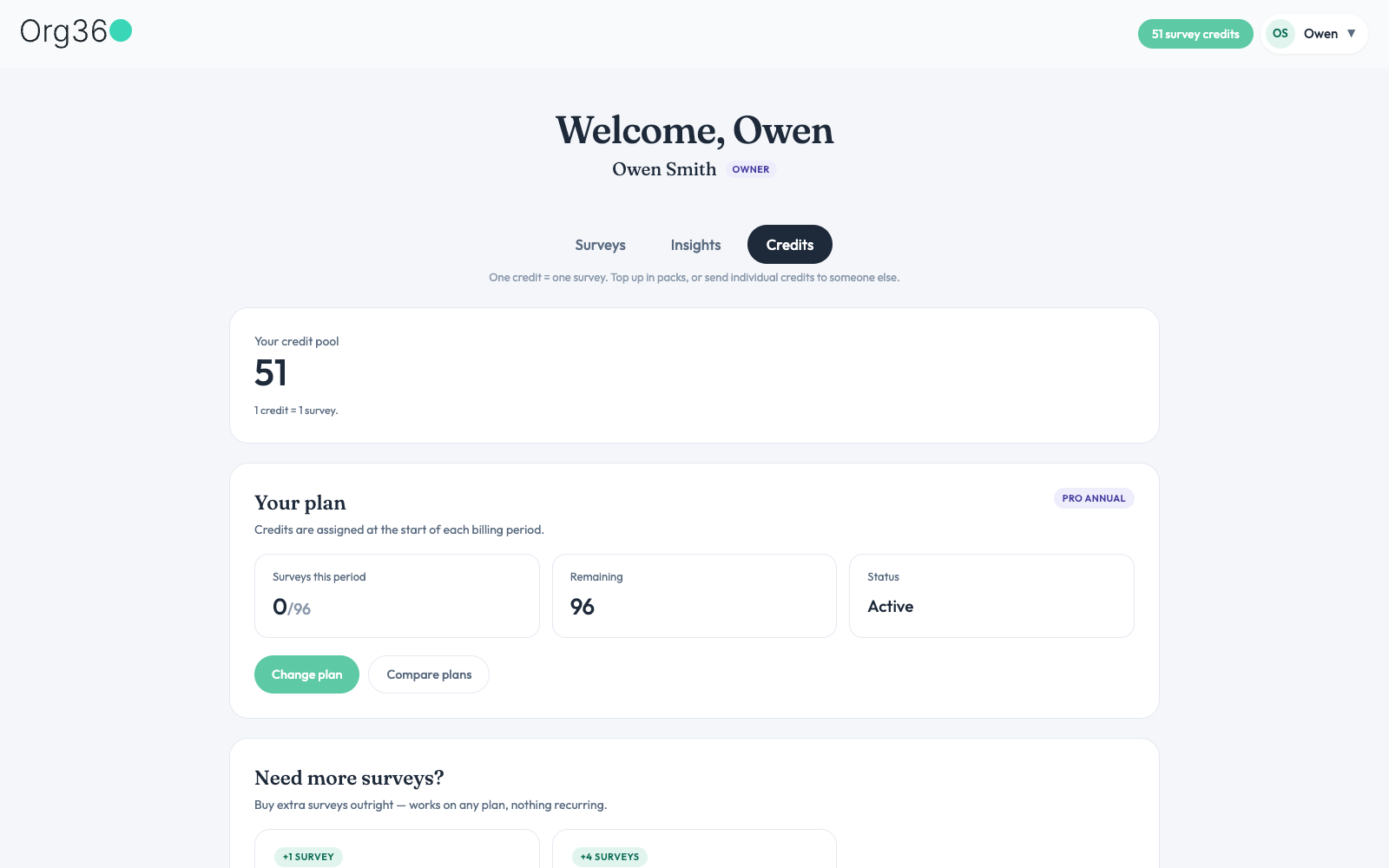
Your credit pool, current plan tier, how many surveys are left this billing period, and shortcuts to change plan or top up. One credit launches one survey.
org360.app/dashboard
Credits tab — pool, plan status, and top-up options.
🚀
Creating a survey
Two paths in: pick a ready-made survey, or build one from a question bank.
🗂️ Launch a survey
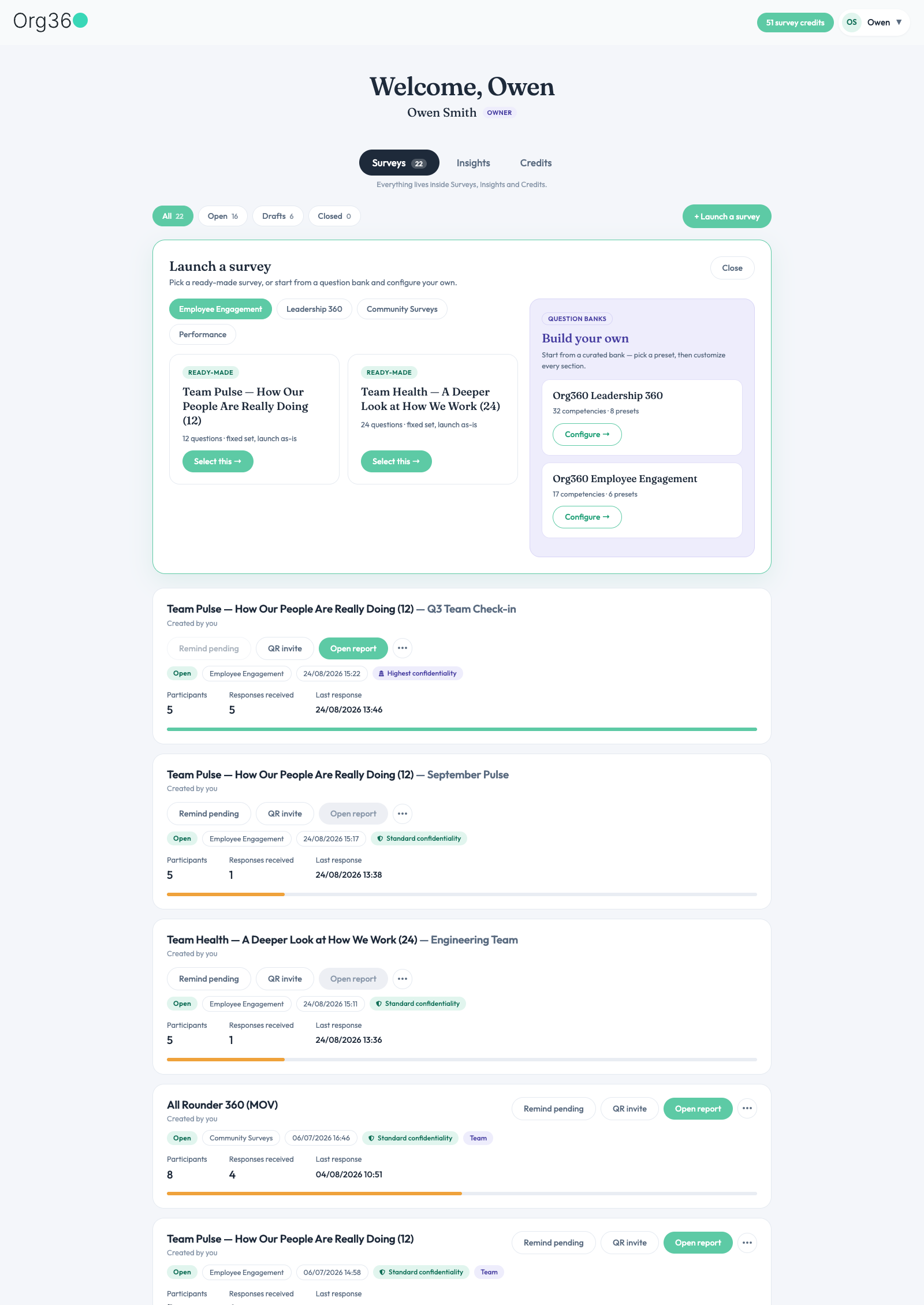
+ Launch a survey on the dashboard opens a panel split into categories — Employee Engagement, Leadership 360, Community Surveys, Performance. Inside each, ready-made surveys are one click away with Select this; the Build your own column lets you start from a full question bank and configure every section yourself.
org360.app/dashboard
The launch panel — ready-made on the left, build-your-own on the right.
🏦 Question banks & presets
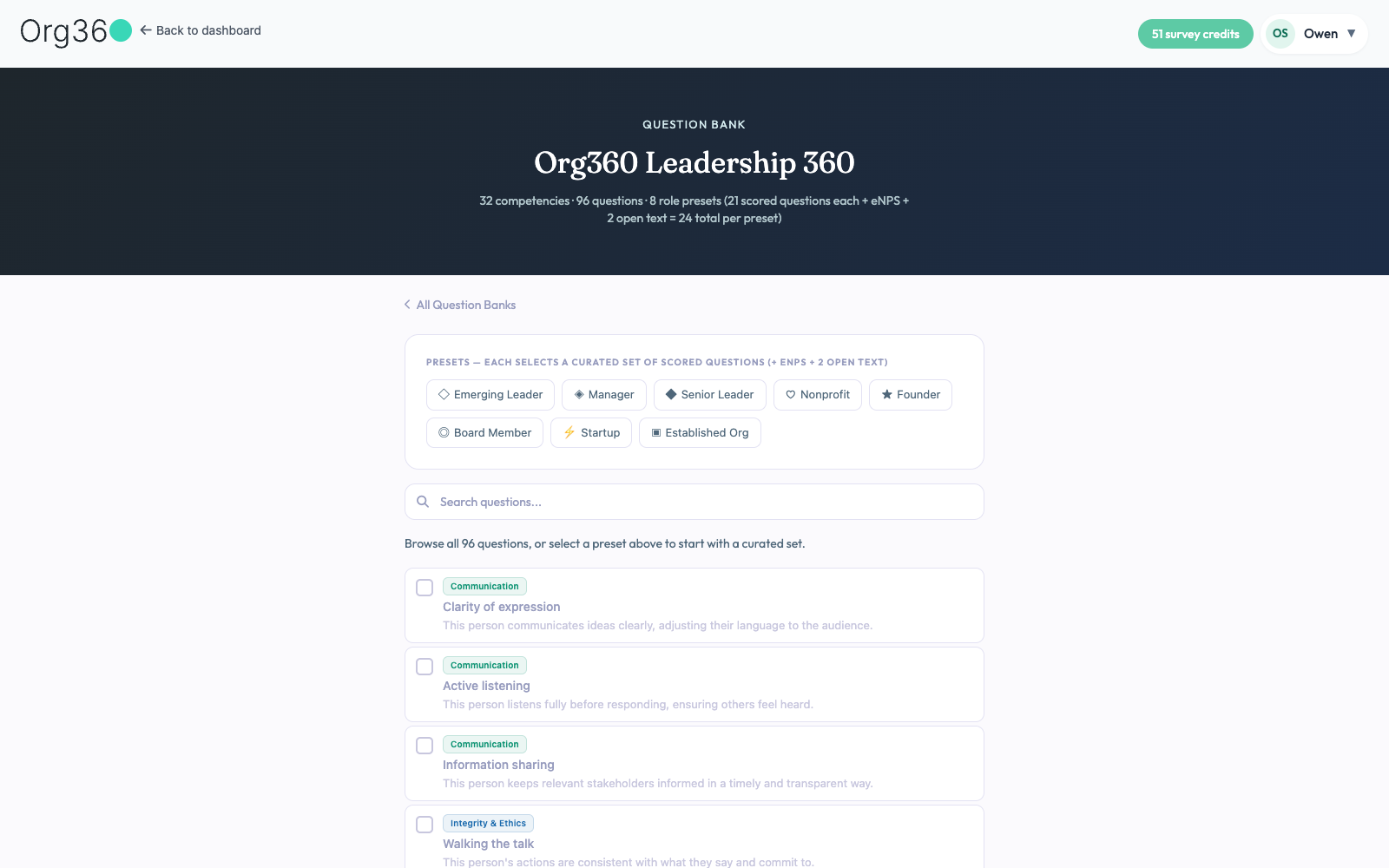
A question bank (e.g. Org360 Leadership 360 — 32 competencies, 96 questions, 8 role presets) can be browsed question-by-question, searched, or narrowed instantly with a role preset like Manager or Founder. Picking a preset auto-selects a curated set of scored questions; every survey also gets an eNPS question and two open-text questions added automatically.
org360.app/questionBank/1
Browsing a question bank — role presets up top, full list below.
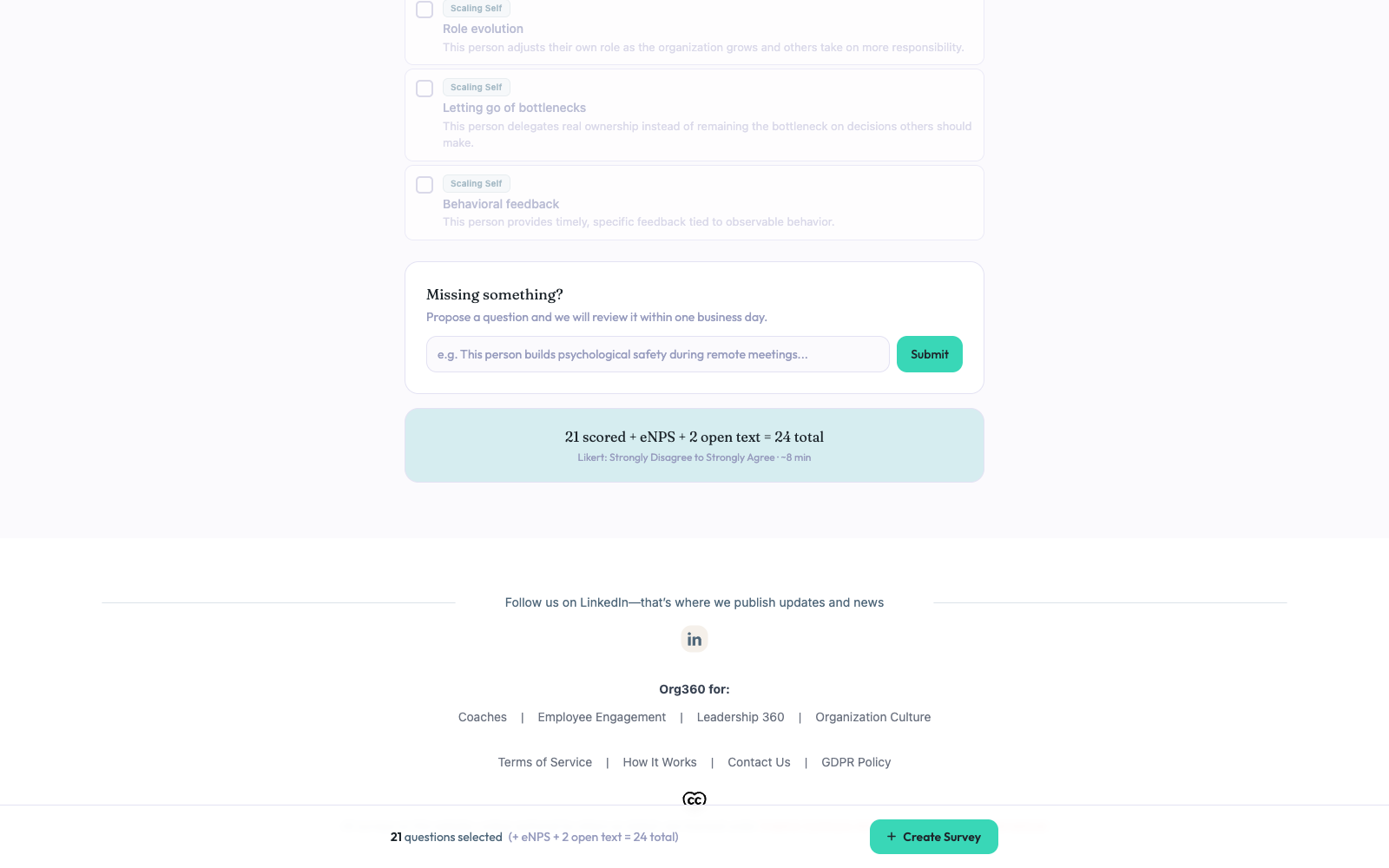
Nothing fits? Deselect or add questions freely, or drop a suggestion into “Missing something?” — it's reviewed within one business day. A sticky bar keeps the running total in view.
org360.app/questionBank/1
A preset selected — 21 scored + eNPS + 2 open text = 24 total.
📝 Naming the draft
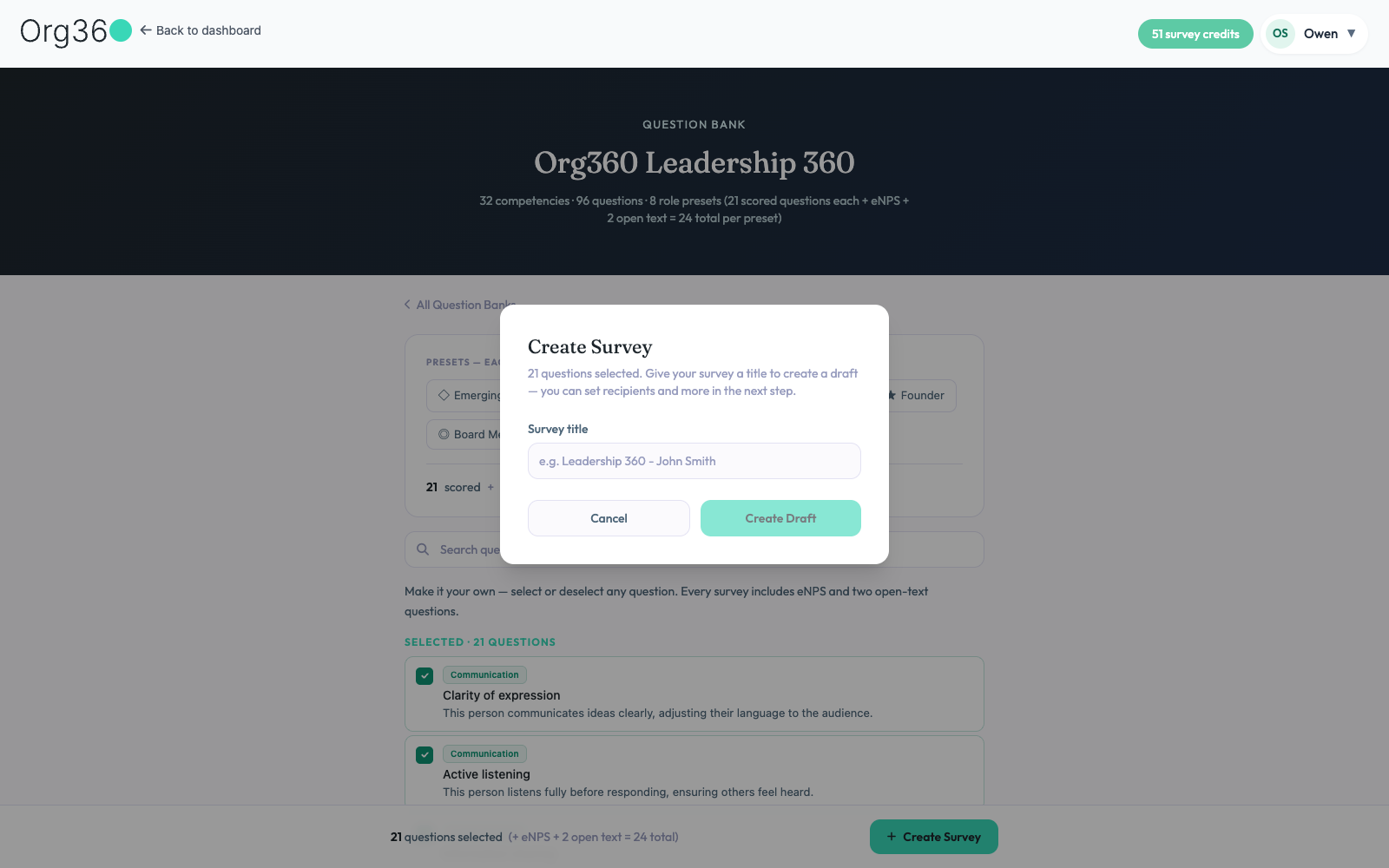
Create Survey asks for one thing — a title — then drops the questions into a draft. Nothing is sent yet; recipients and sending happen as a separate, later step.
org360.app/questionBank/1
Give it a title, and it lands in Drafts.
✍️ Reviewing & editing questions
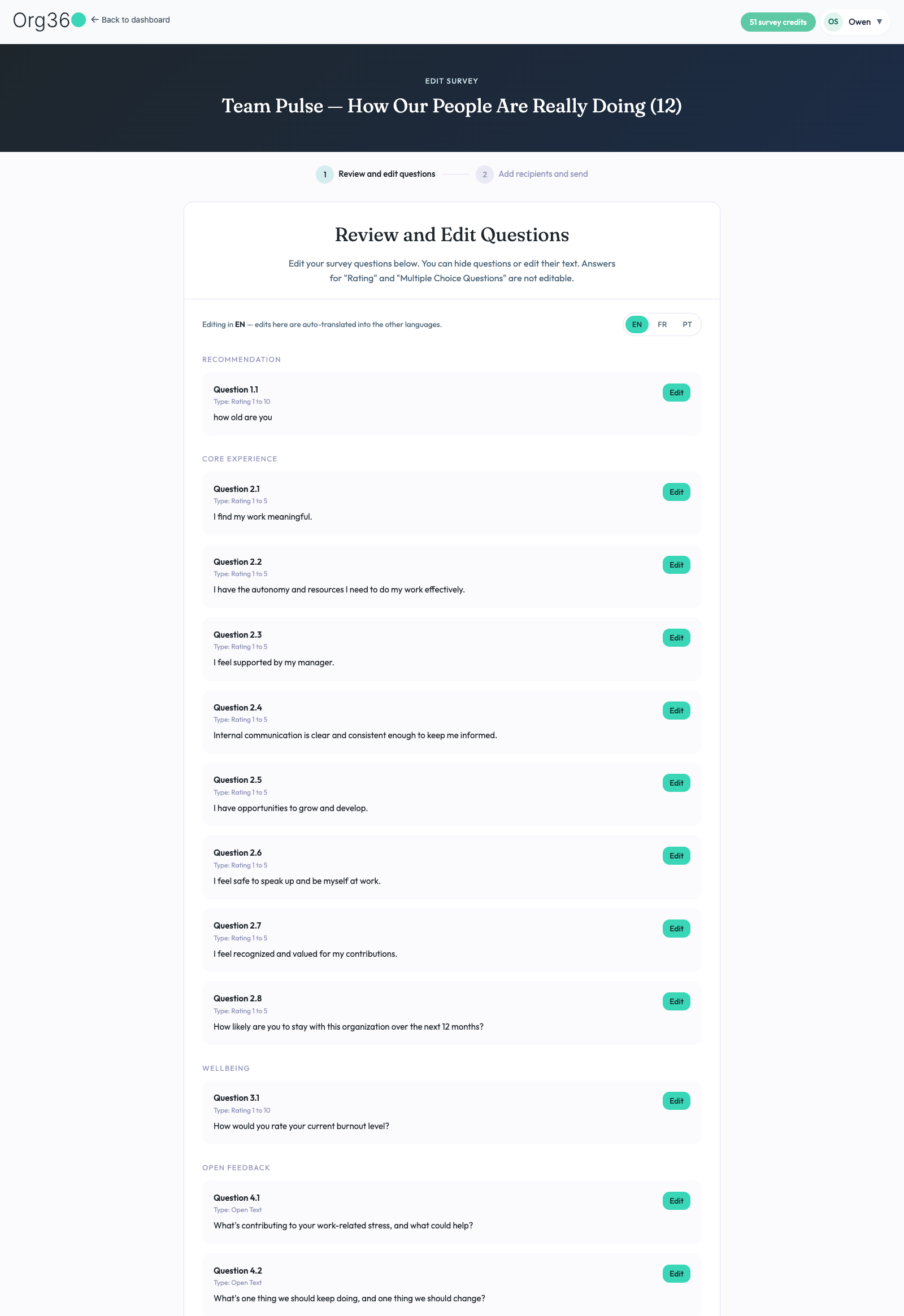
Every draft opens into a two-step flow — ① Review and edit questions, then ② Add recipients and send. Step one groups questions by competency, lets you tweak wording per question, and edits in English auto-translate into the survey's other languages (EN / FR / PT seen here). Rating and multiple-choice question types stay fixed; open-text prompts are freely editable.
org360.app/editSurvey/…
Step 1 of 2 — review, edit, and translate the question set.
🛑
Step 2 is the point of no return. “Add recipients and send” is where the survey actually leaves the building — treat it with the same care as hitting send on a real email blast.
📣
Sending & collecting responses
Once a survey is live, there are two ways in for participants.
📱 QR & open-link invites
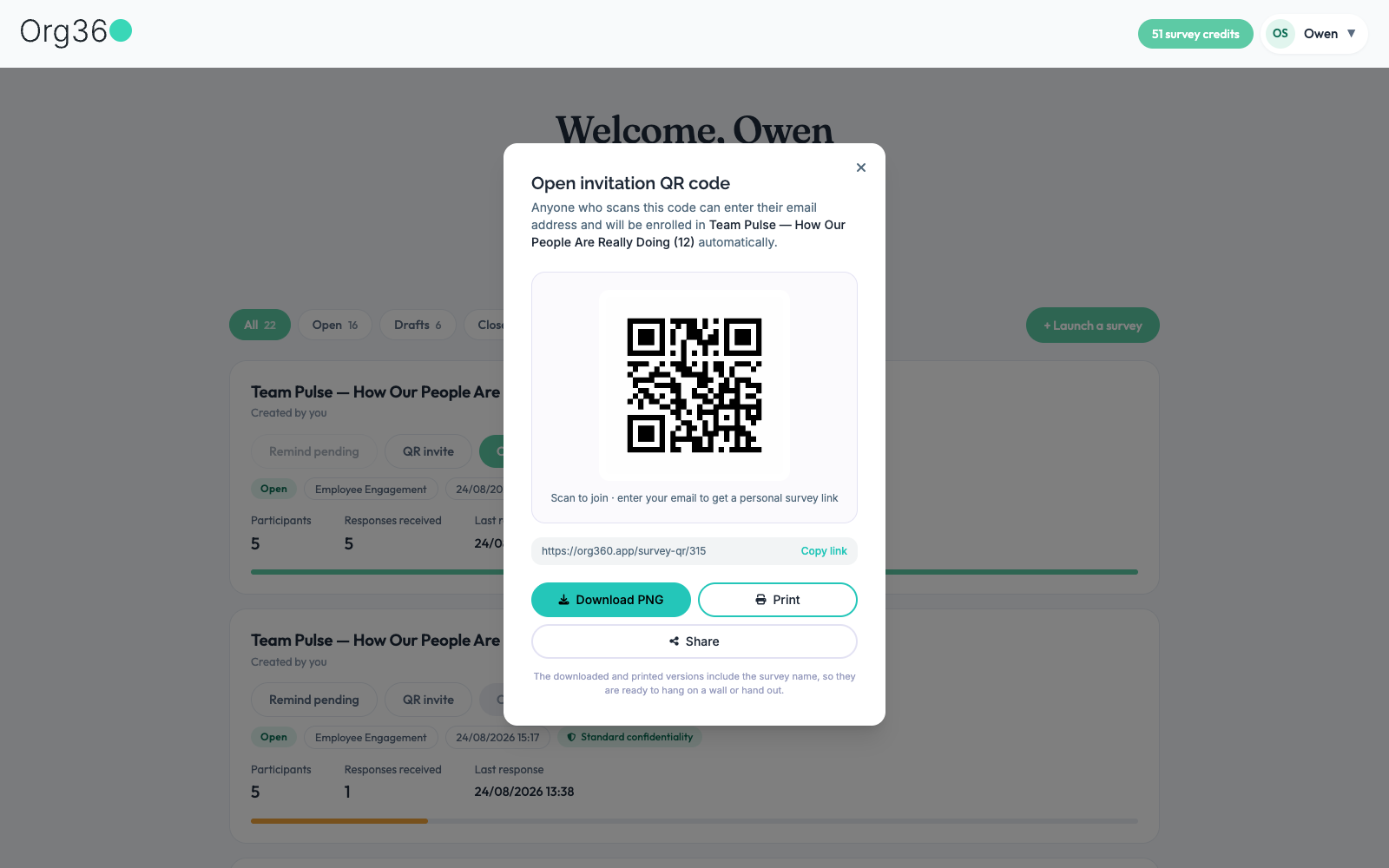
QR invite on any open survey generates a scannable code and a matching link. Anyone who scans it enters their email and is enrolled automatically — no pre-built recipient list required. It can be downloaded as a PNG, printed (survey name included, ready to hang), or shared natively.
org360.app/survey-qr/…
Scan-to-join — self-serve enrollment via QR or link.
🔔 Reminders & response tracking
Remind pending nudges everyone who hasn't answered yet (it greys out once nobody's left to remind). Progress lives right on the dashboard card — participants, responses received, and last response time update as answers come in. See Surveys tab.
📈
Reading a report
Once enough responses are in, Open report unlocks a five-tab AI-written writeup.
🪞 Summary & archetype
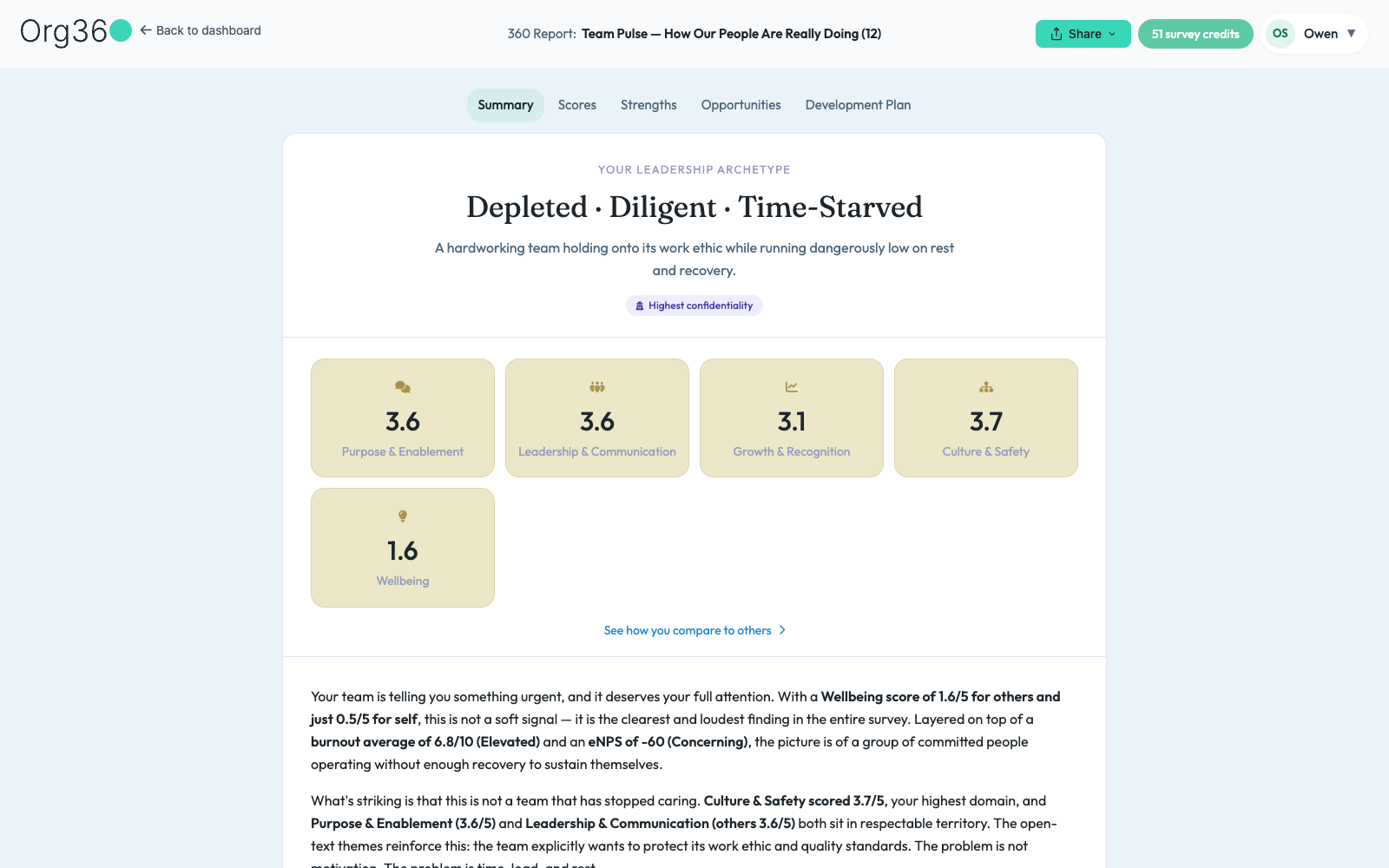
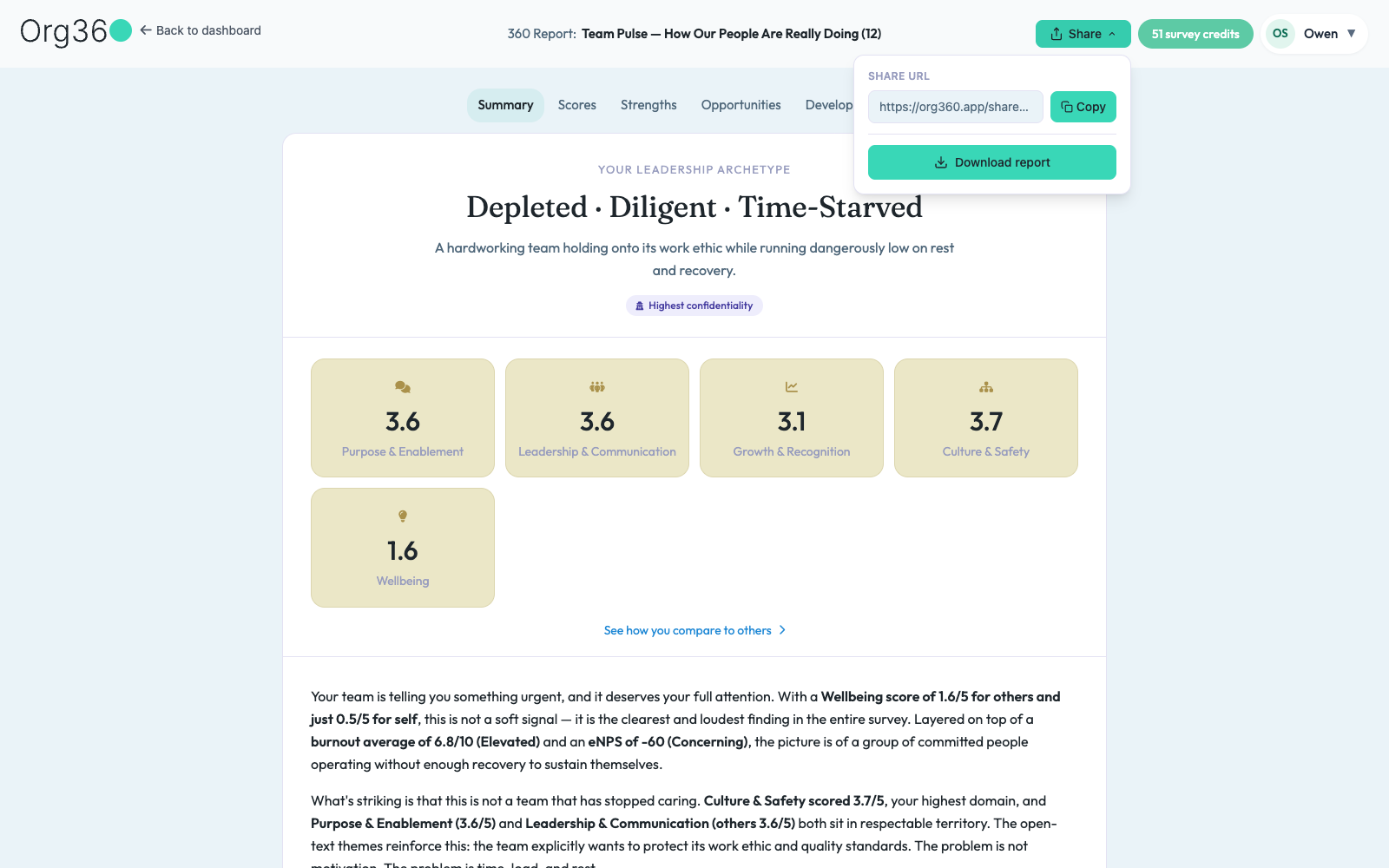
Every report opens with a short, evocative “leadership archetype” — three words that frame the whole result (this sample reads Depleted · Diligent · Time-Starved) — a one-line explanation, domain score tiles, and a written narrative underneath. The confidentiality level chosen at launch (Standard or Highest) is shown right on the summary.
org360.app/reports/…
Summary — the archetype, domain tiles, and the AI narrative.
📐 Scores & radar chart
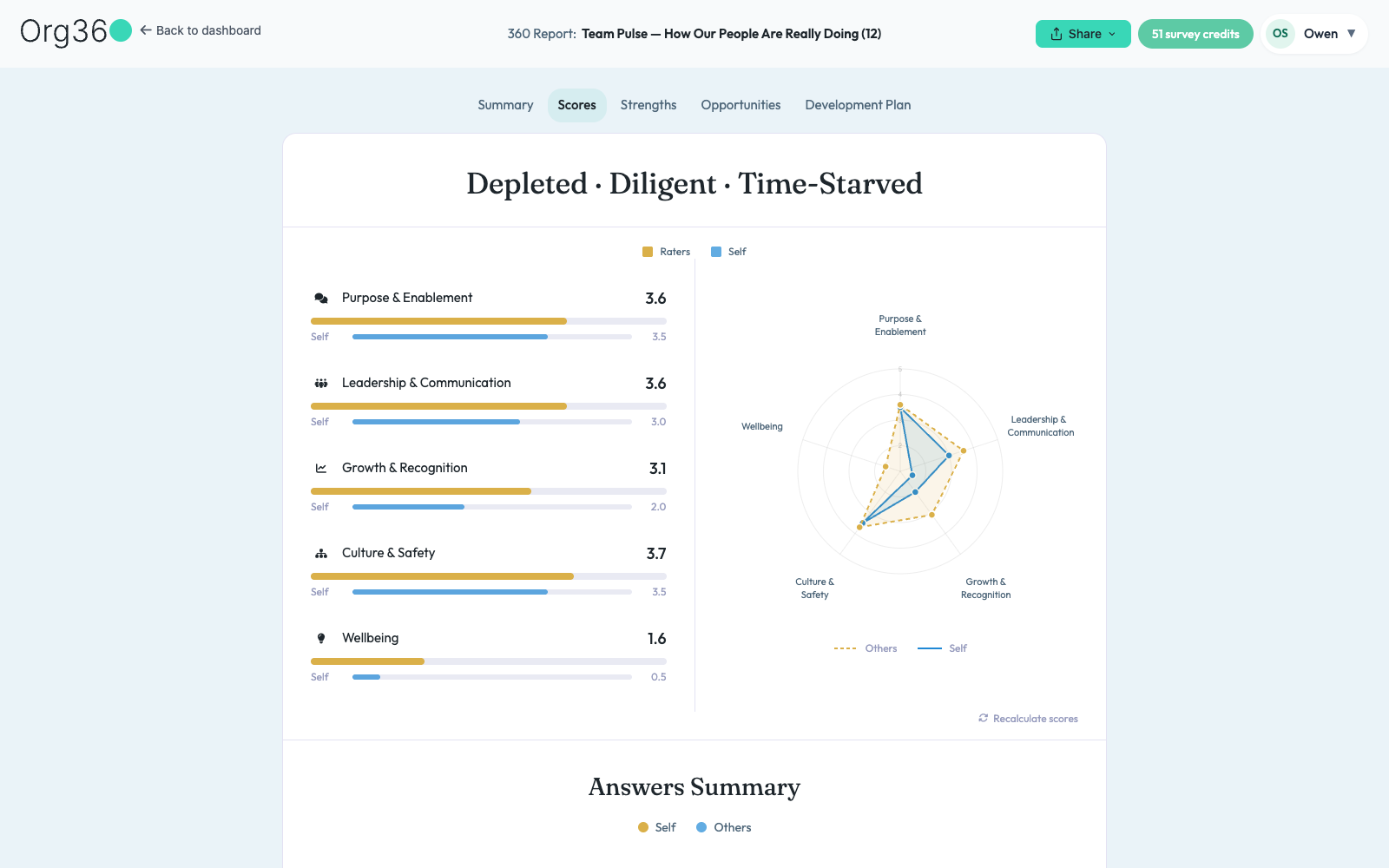
Every domain broken into a Self-vs-Raters bar comparison, plus a radar chart plotting both across the whole model at once — the fastest way to spot where self-perception and team perception pull apart.
org360.app/reports/…
Scores — self vs. others, bar by bar and on the radar.
💪 Strengths
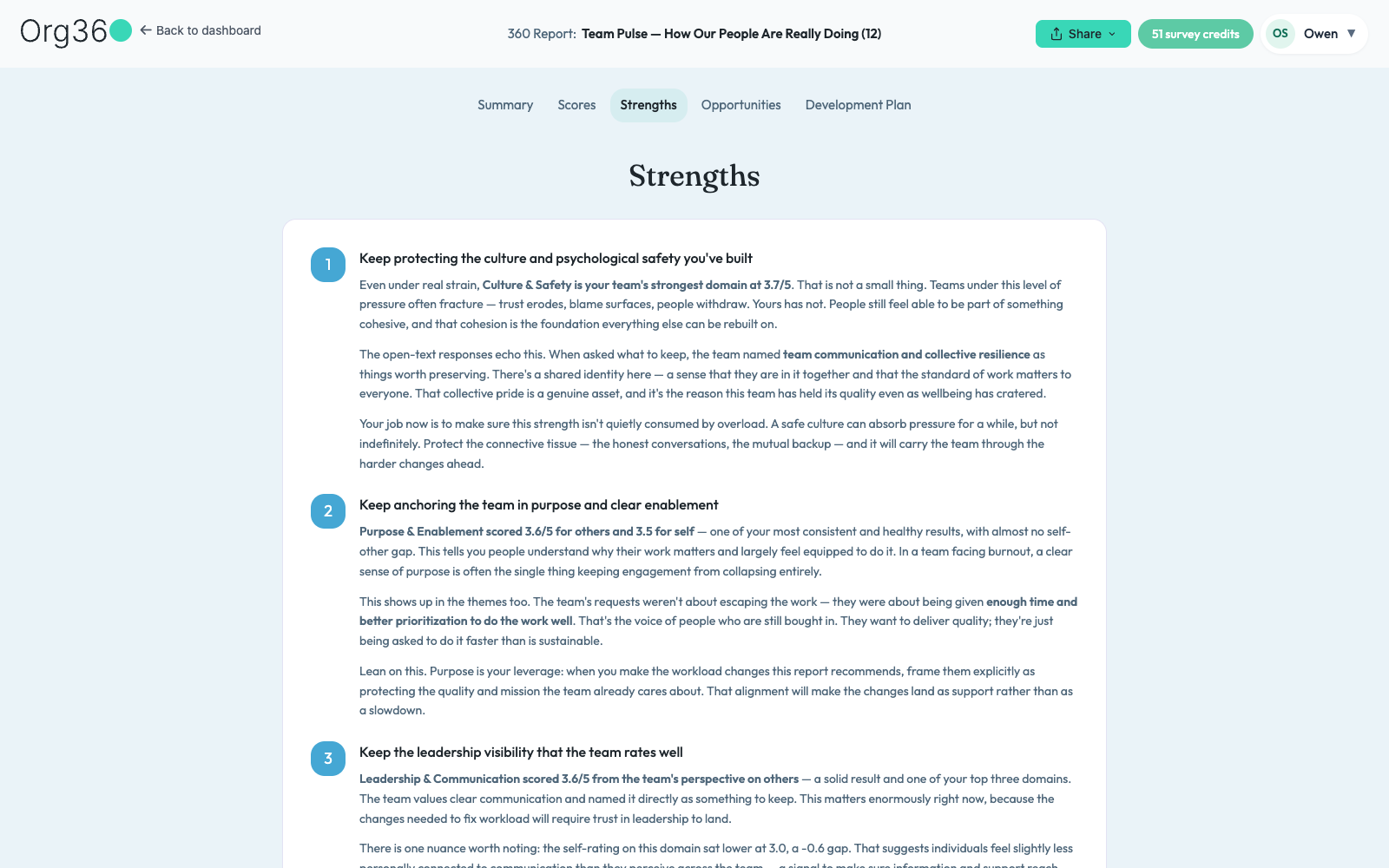
Numbered, evidence-backed calls for what's already working and worth protecting.
org360.app/reports/…
Strengths — what to keep doing.
🎯 Opportunities
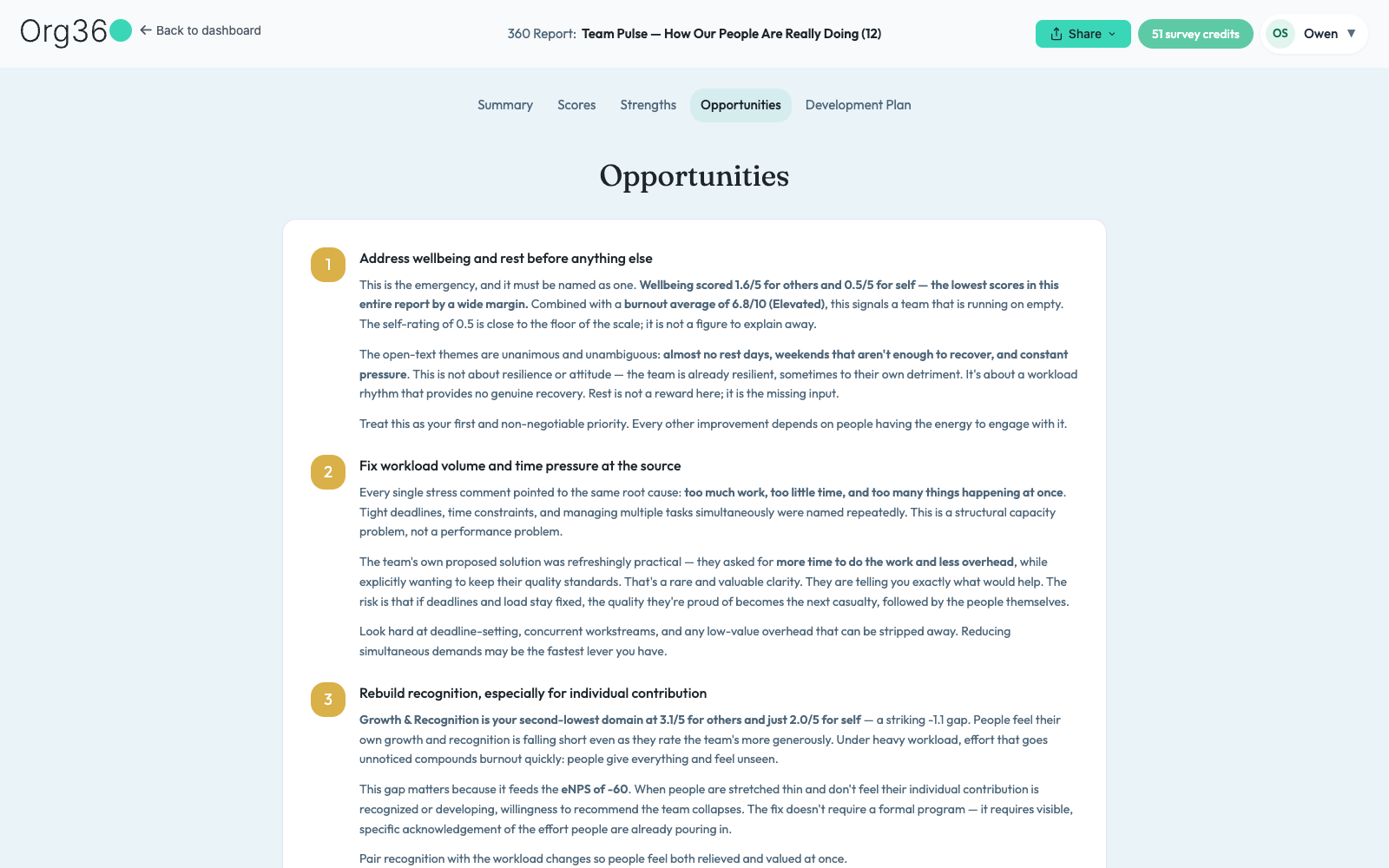
The same format turned toward risk — ranked, with the evidence that puts each one on the list.
org360.app/reports/…
Opportunities — what needs attention first.
🗓️ Development plan
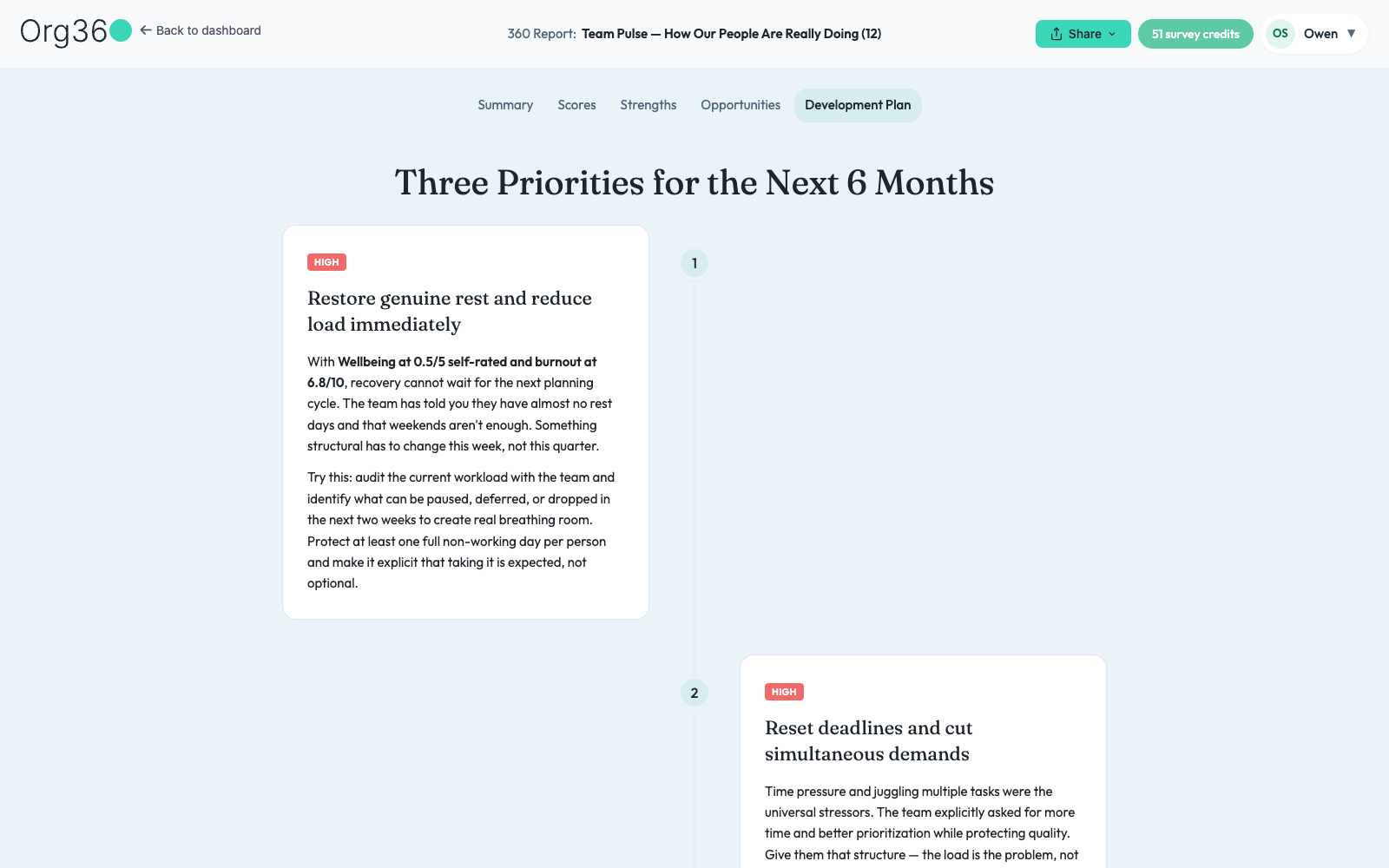
“Three Priorities for the Next 6 Months” — a small timeline, each entry tagged by urgency (HIGH and below) with a concrete, try-this-week suggestion attached.
org360.app/reports/…
Development Plan — ranked, dated, and actionable.
🔗 Sharing a report
The Share menu at the top of any report gives you a copyable public link and a one-click PDF download — no need to screen-share the tab.
org360.app/reports/…
Share — a public link, or a downloadable PDF.
👥
Team & workspace
Credits and surveys can live with a person, or be shared across a whole workspace.
🏗️ Creating a workspace
Workspaces are a paid feature — Essentials or Pro only. Anyone on a plan that includes it and who doesn't already own one sees a Create your workspace card from Invite to Team: a name field, and an optional slider to move some of your personal credits in on day one (you can always move more later). On a plan without workspace access, that same spot shows an upgrade prompt instead.
Owning a workspace and belonging to someone else's aren't mutually exclusive — a member of another team can still spin up their own if their plan allows it.
👑
Roles, once a workspace exists: an owner can invite, remove anyone, change roles, transfer credits, and delete the workspace (and can't leave it — deleting is the only way out). An admin can invite and remove members, but not other admins. A member has no management powers but can leave whenever they want.
🔁 Shared credits & transfers
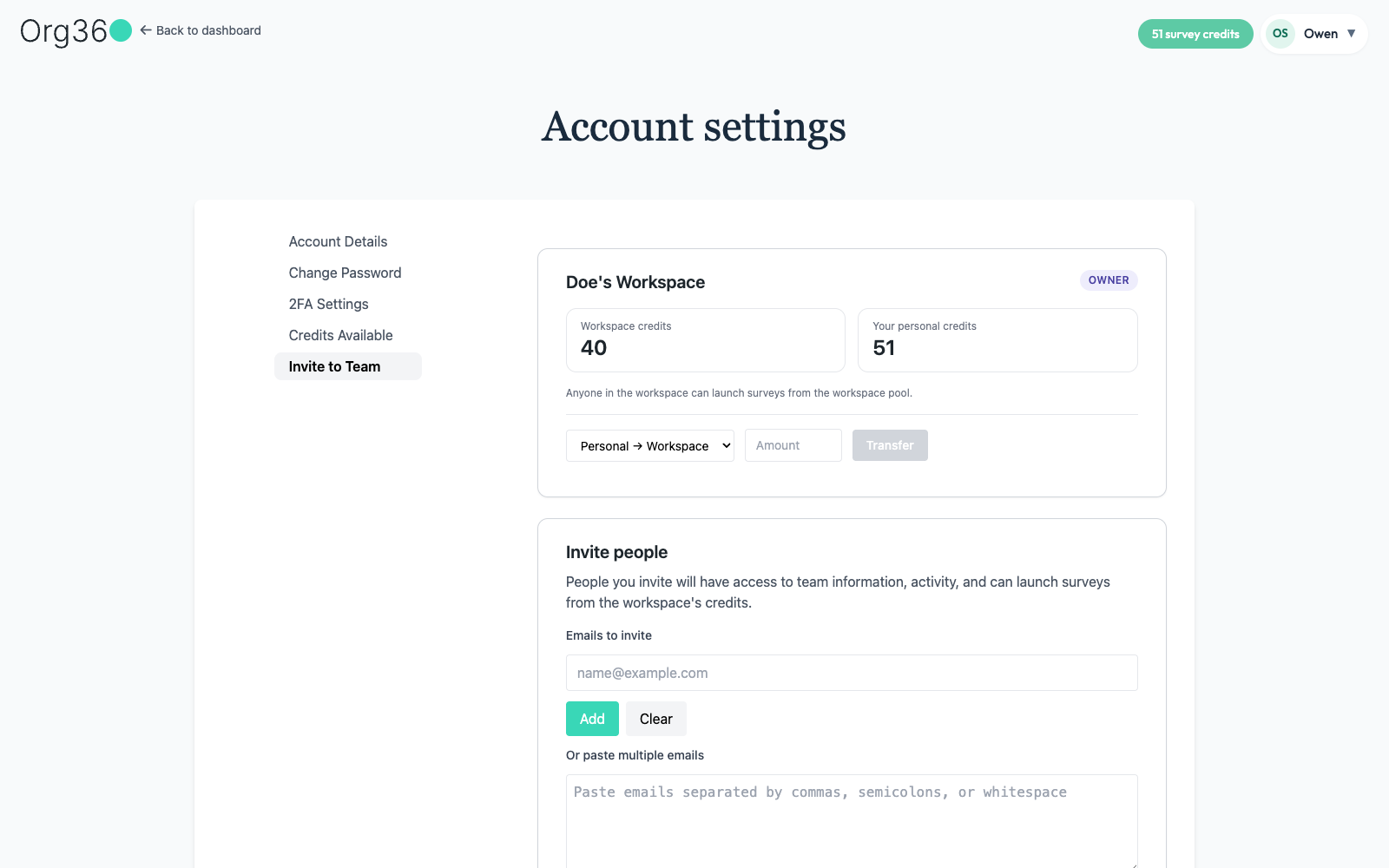
A workspace has its own credit pool, separate from anyone's personal balance — anyone in it can launch surveys against the shared pool. The owner can move credits either way, Personal → Workspace or Workspace → Personal, by picking a direction, entering an amount, and hitting Transfer.
org360.app/accountSettings
Two-way transfer — owner only, either direction, any amount.
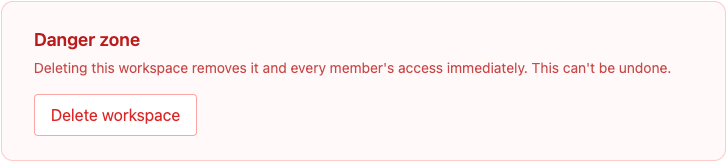
Deleting a workspace (owner-only, from the bottom of the same page) removes it and every member's access immediately — it can't be undone.
org360.app/accountSettings
The one irreversible workspace action, tucked at the very bottom.
🔀 Switching to Team Mode
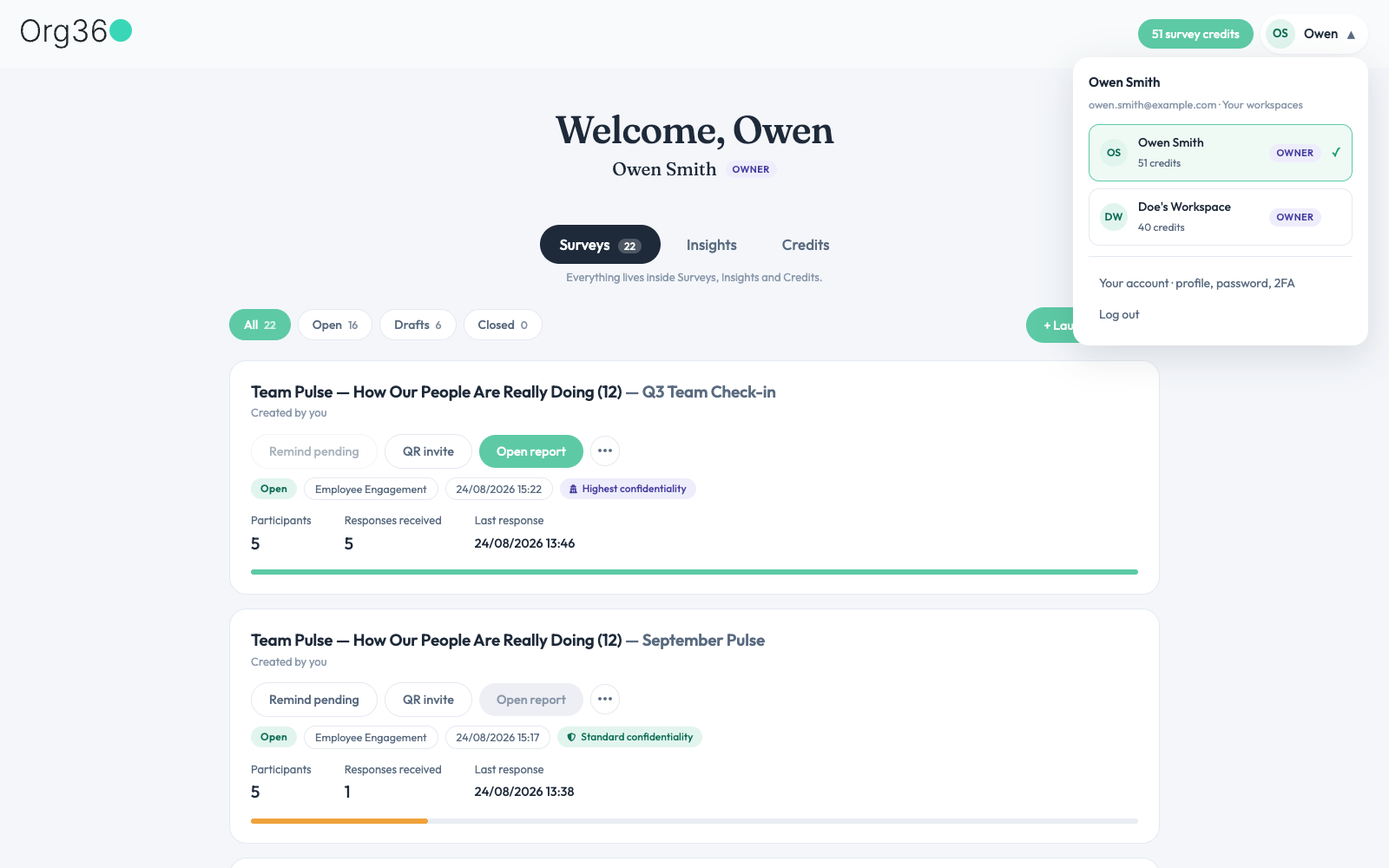
The Owen ▾-style profile menu (top right, any logged-in page) lists every workspace you own or belong to alongside your personal account — each row shows its credit balance and your role there. Picking one is how you move between “my stuff” and “the team's stuff.”
org360.app/dashboard
The profile menu — personal account plus every workspace you're part of.
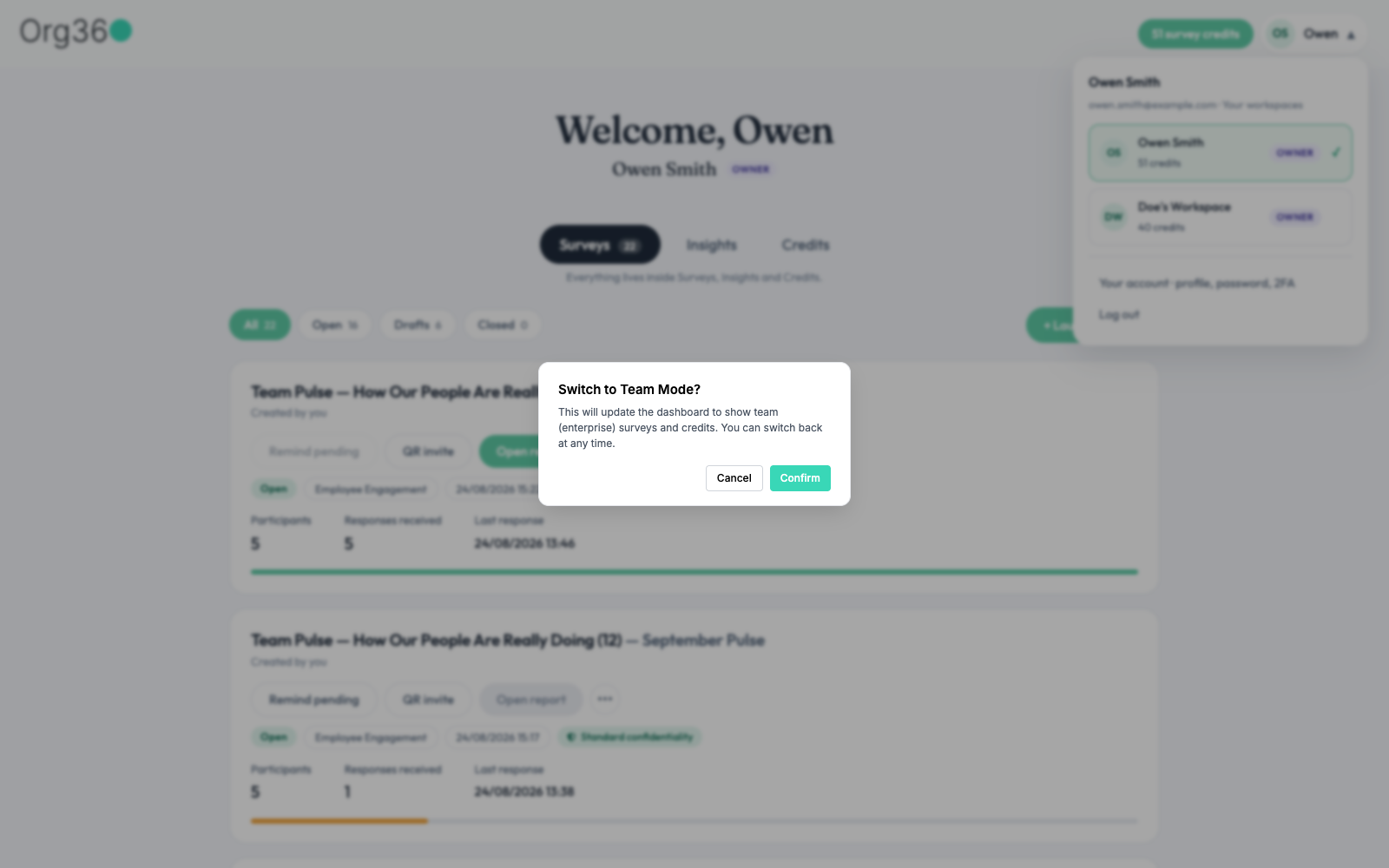
Selecting a workspace asks for a quick confirmation, since it changes what the whole dashboard shows.
org360.app/dashboard
“You can switch back at any time” — nothing about it is permanent.
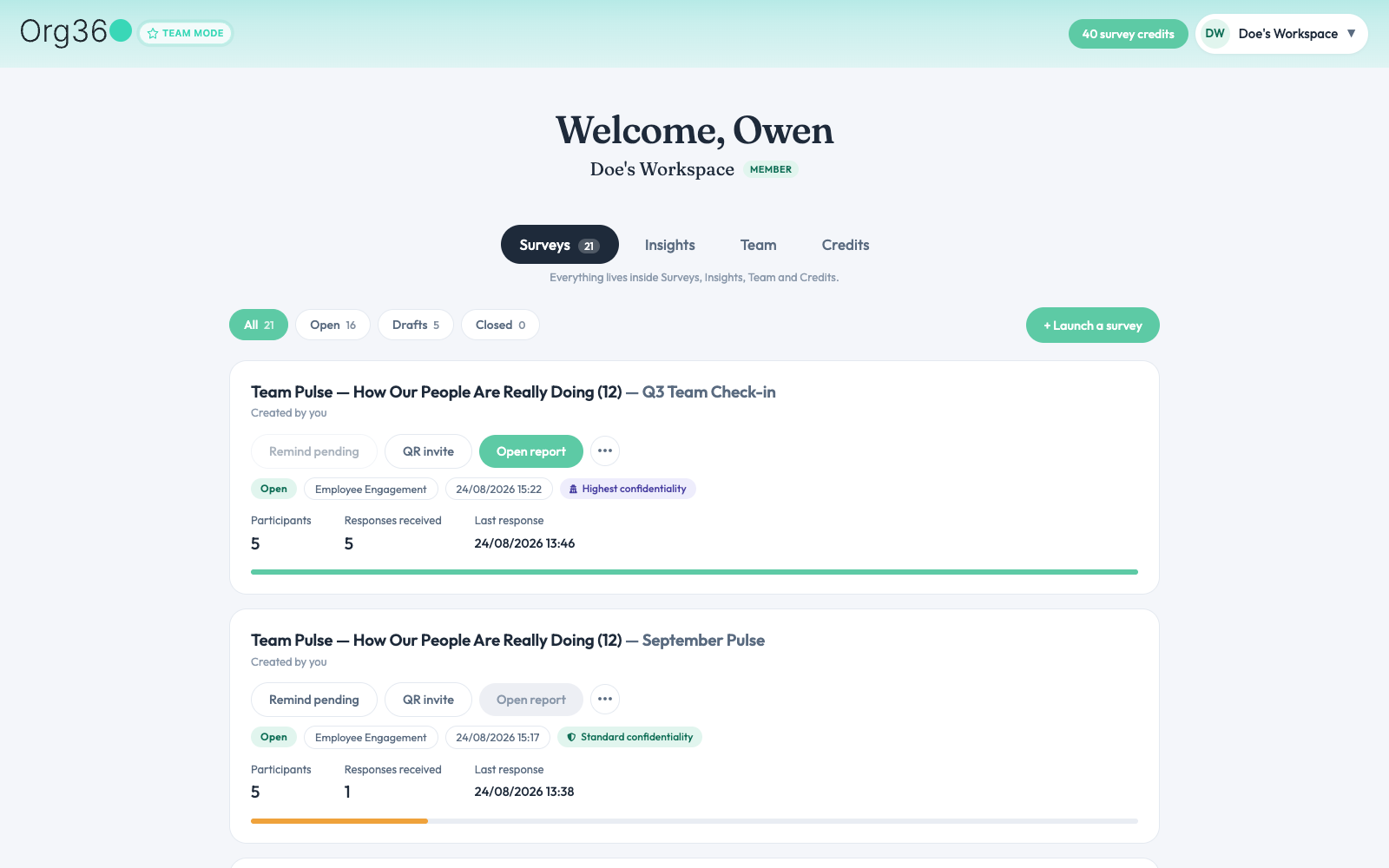
Team Mode swaps in a teal TEAM MODE banner, the workspace's name and credit count replace your personal ones top-right, and a fourth dashboard tab — Team — appears next to Surveys, Insights and Credits.
org360.app/dashboard
Team Mode — same dashboard, workspace-scoped surveys and credits.
📊 Team Usage
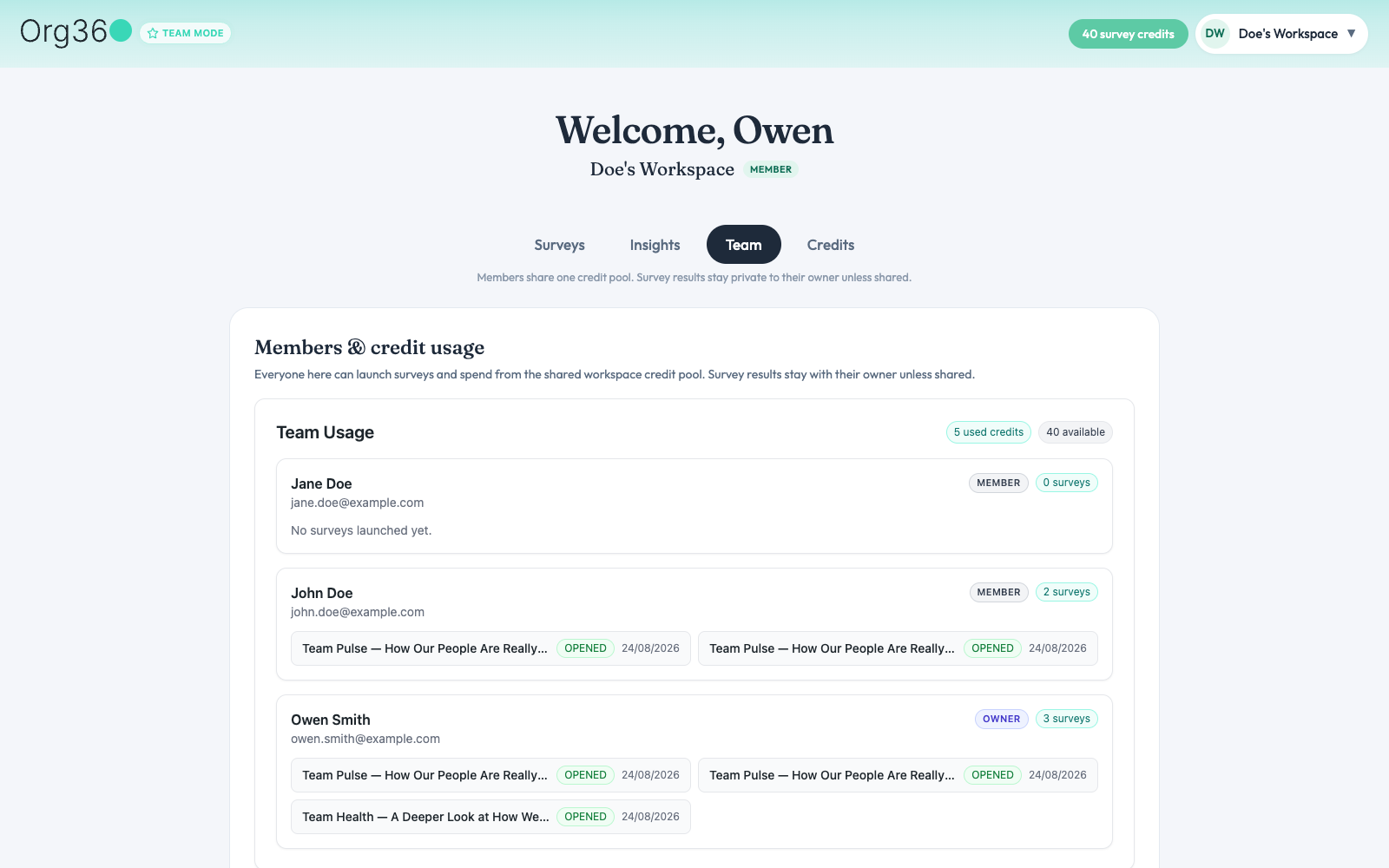
The Team tab (Team Mode only) breaks the shared pool down by person — who's in the workspace, their role, how many credits they've used, and which surveys they personally launched against it. Survey results themselves stay private to whoever created them unless that person shares the report.
org360.app/dashboard
Team Usage — every member, their role, and what they've launched.
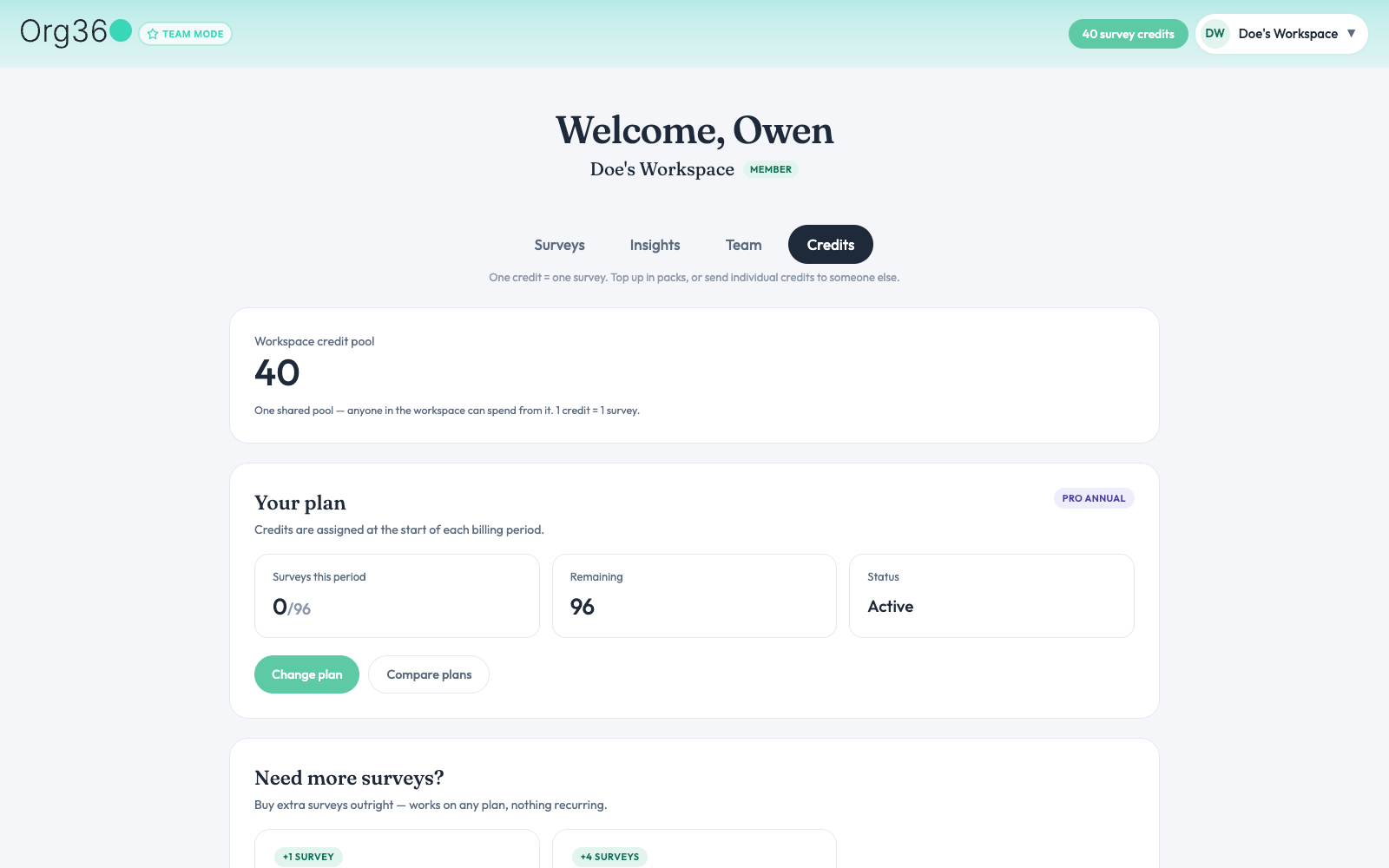
The Credits tab changes shape too, in Team Mode: it leads with the workspace credit pool instead of a personal one, though the plan details underneath are the same.
org360.app/dashboard
Credits, in Team Mode — the workspace pool leads instead of a personal one.
✉️ Inviting people
Add teammates one address at a time, or paste a whole batch separated by commas, semicolons, or whitespace. Anyone invited gets access to team activity and can spend the shared credit pool.
⚙️
Account settings
Reached from the profile menu, top right — five tabs down the left side.
🪪 Account details
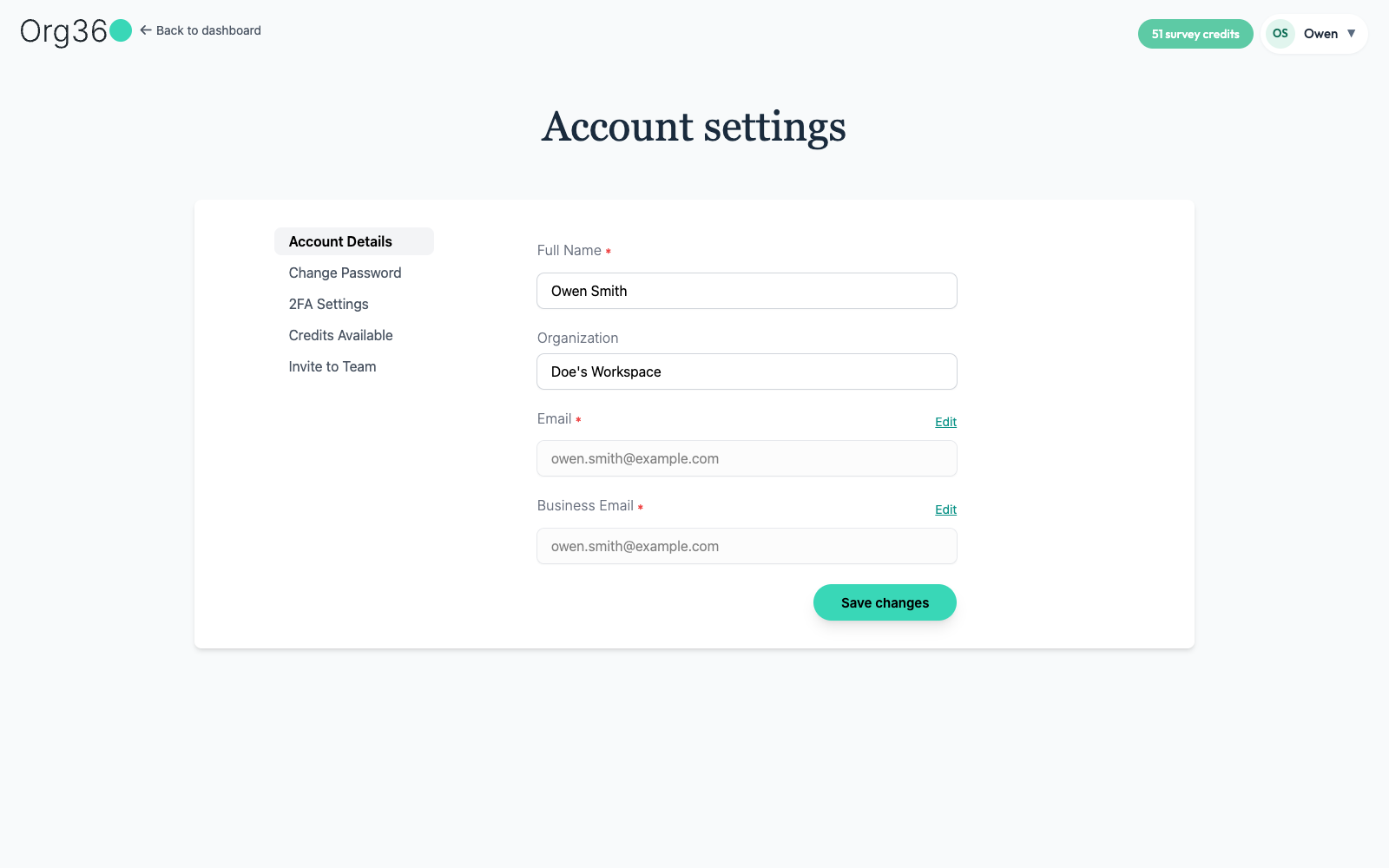
Full name, organization, and two separately-editable email addresses — a login email and a business email — each with its own Edit link.
org360.app/accountSettings
Account Details — name, organization, and emails.
🔒 Password & 2FA
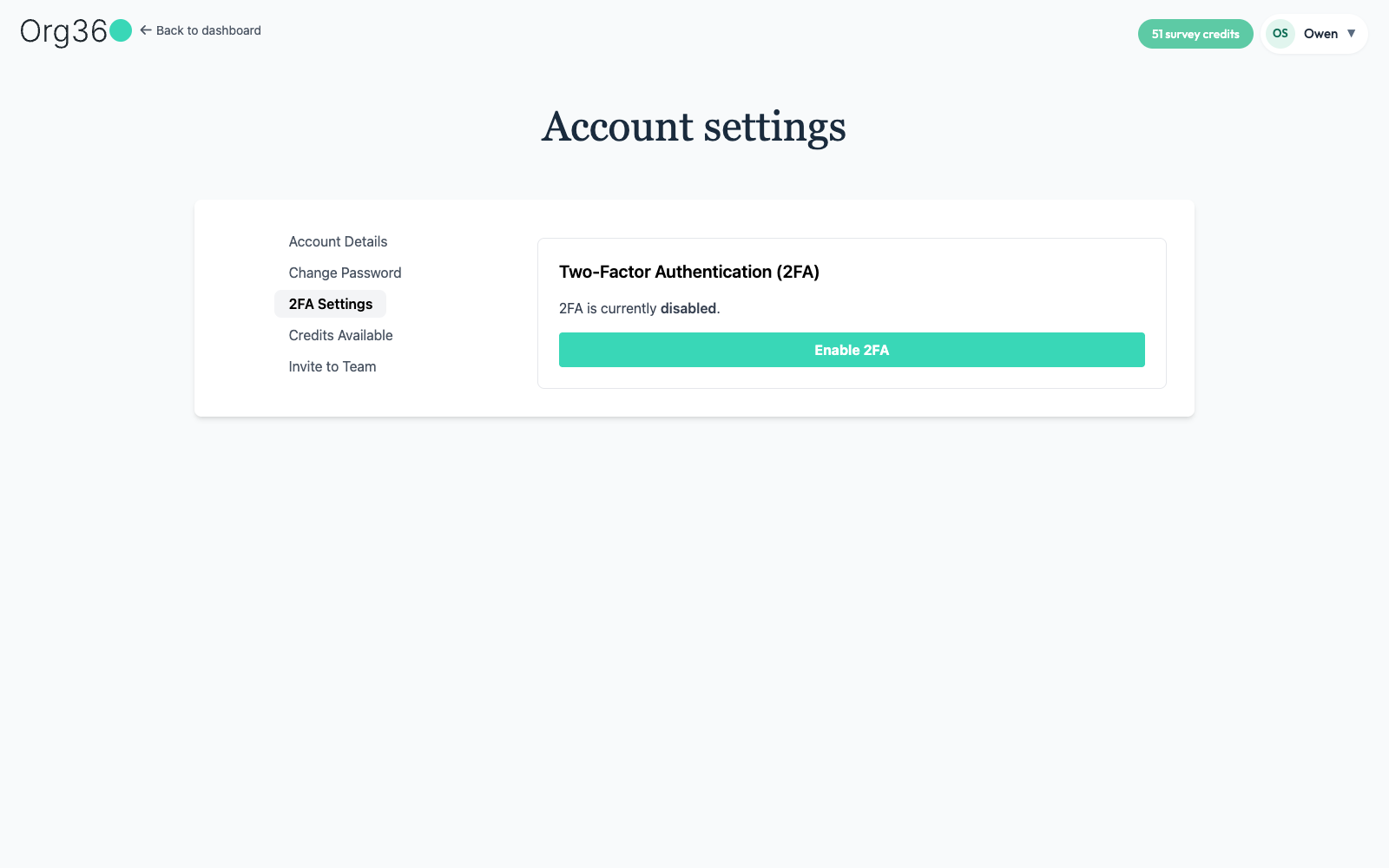
Two-factor authentication is off by default and one click to turn on. Until it's enabled, a small amber reminder follows you around the account and login screens.
org360.app/accountSettings
2FA Settings — disabled by default, one click to enable.
🧾 Credit ledger
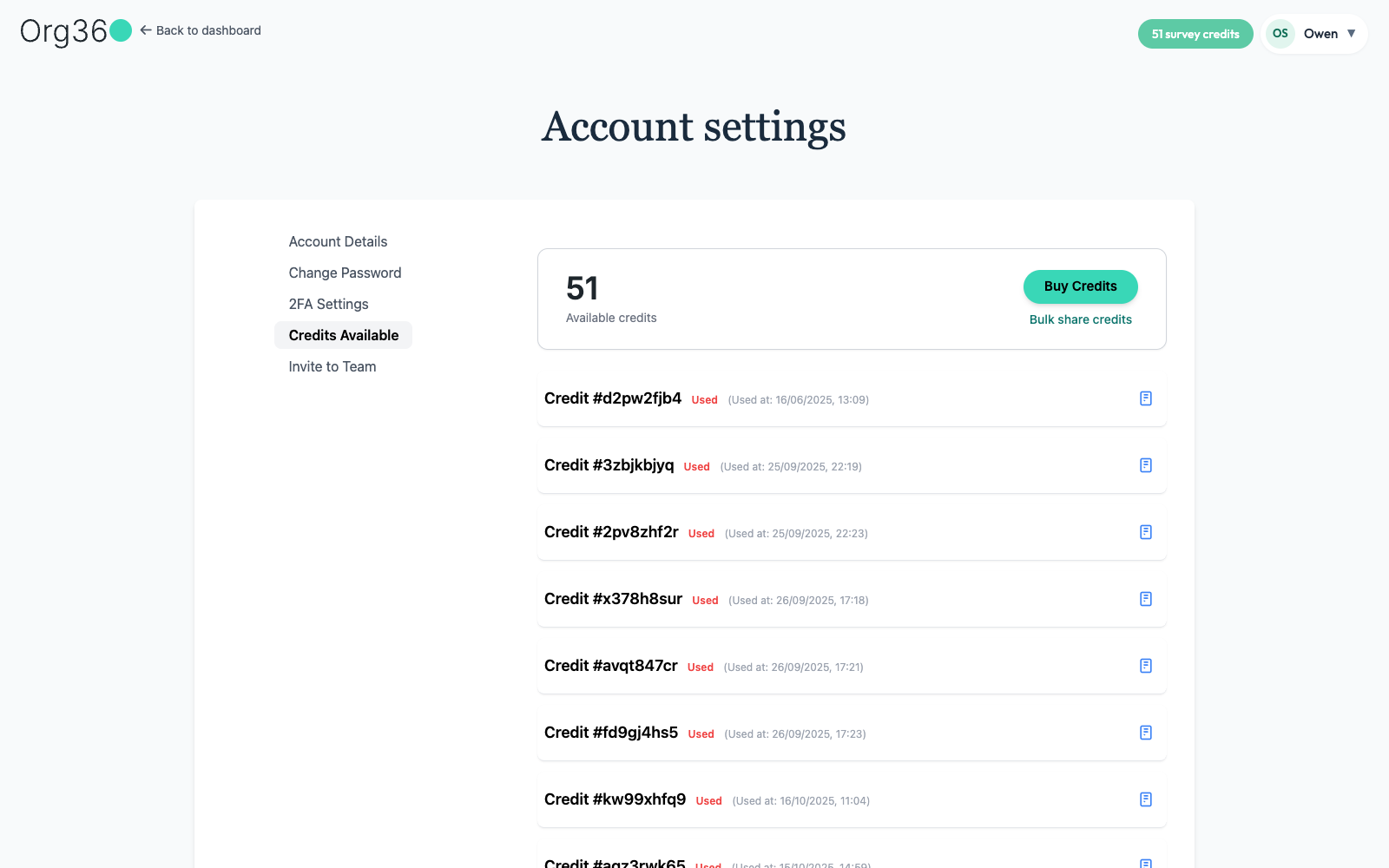
Every credit you've ever held, individually — a code, whether it's used, and exactly when. Buy more, or bulk-share a batch with someone else, from the same screen.
org360.app/accountSettings
Credits Available — the full ledger, one row per credit.
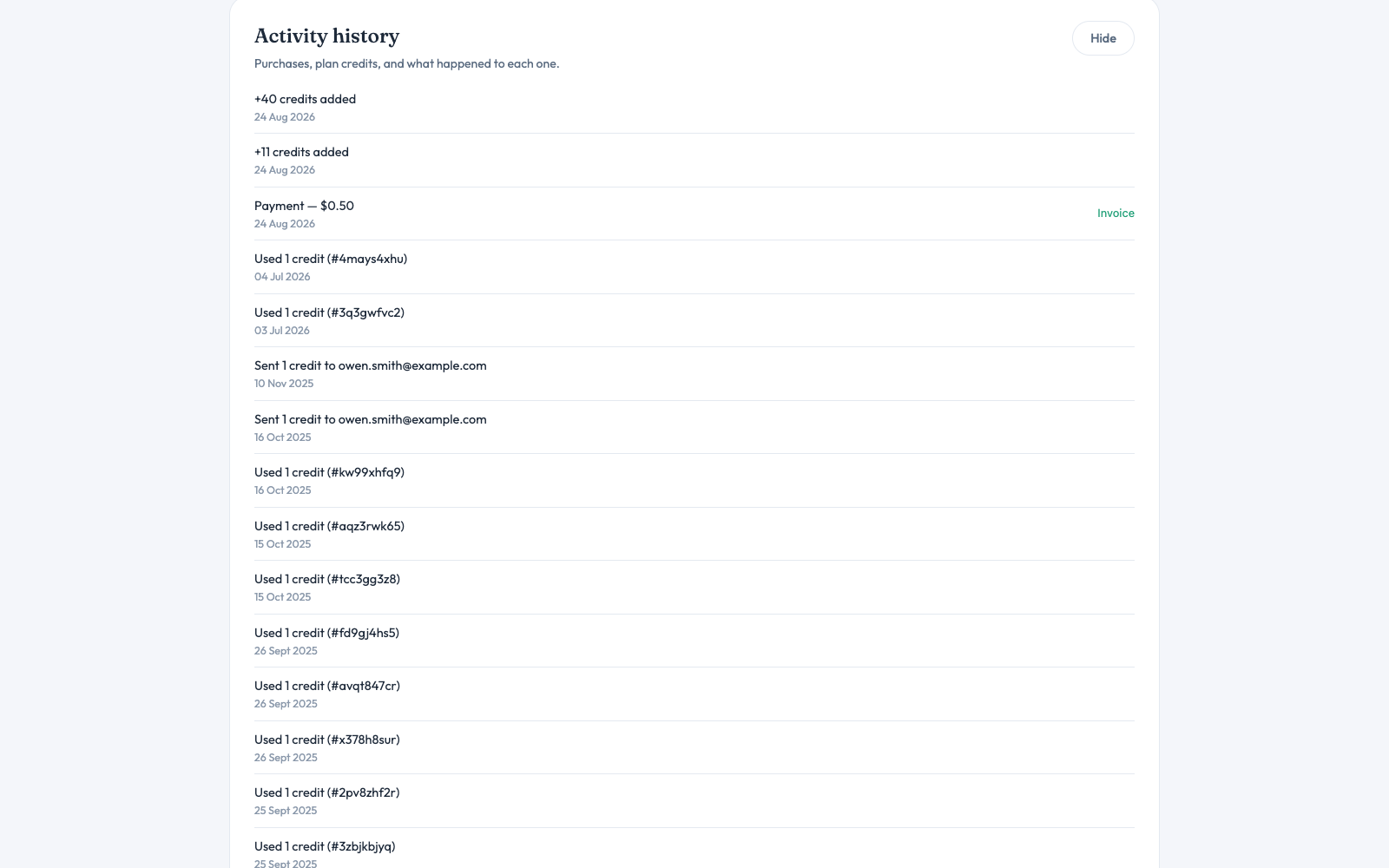
The dashboard's Credits tab has its own collapsed Activity history — “View more” expands it into every purchase, credit grant, transfer, and usage event in order, each with an invoice link where one applies.
org360.app/dashboard
Activity history, expanded — purchases, grants, sends, and usage.
💳
Plans & billing
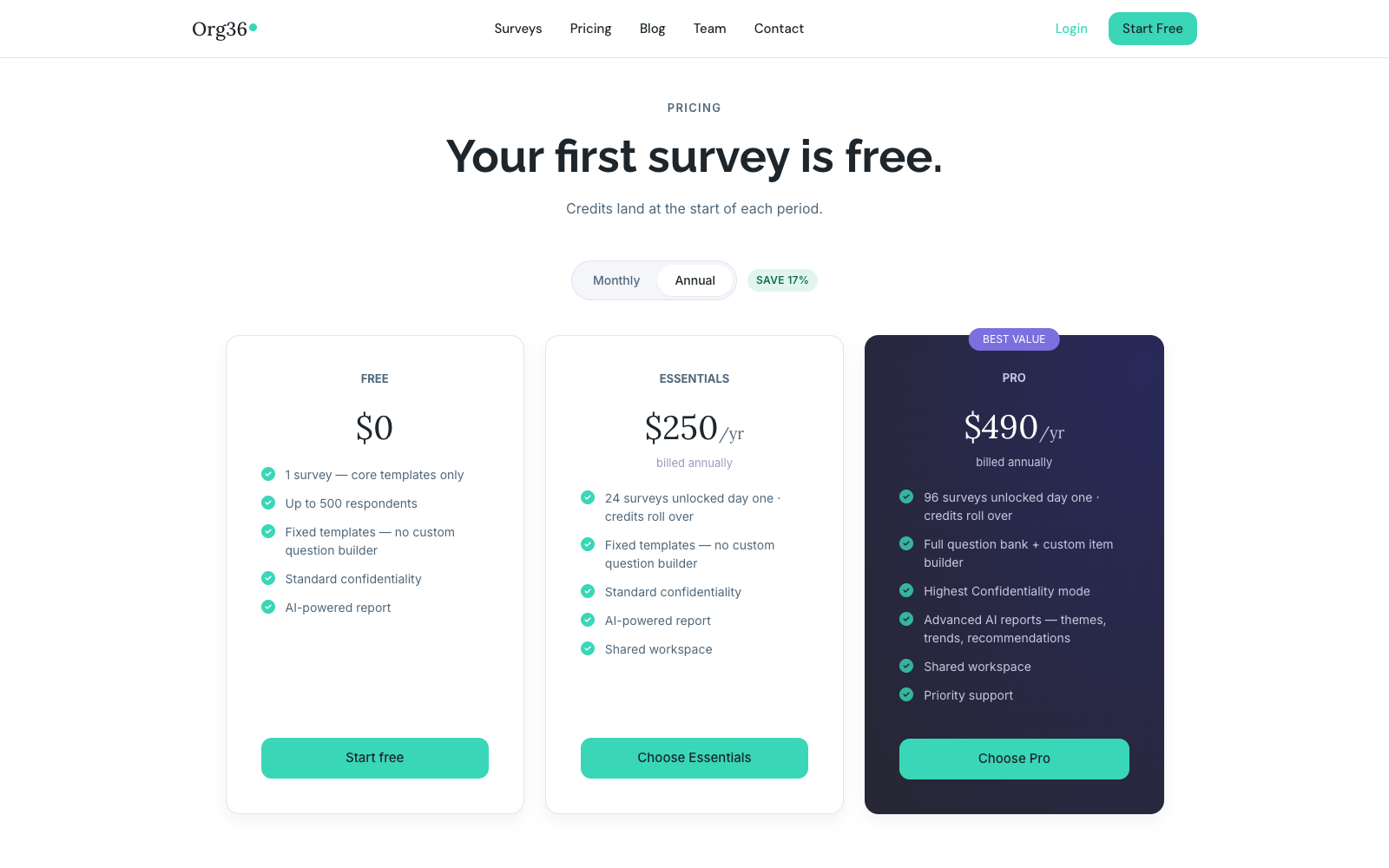
Three tiers, billed monthly or annually, plus one-off credits that work alongside any of them.
🏆 Plan tiers
Free
$0
1 survey — core templates only
Up to 500 respondents
Standard confidentiality
AI-powered report
Essentials
$250 /yr
24 surveys unlocked day one, credits roll over
Standard confidentiality
Shared workspace
Pro · Best value
$490 /yr
96 surveys unlocked day one, credits roll over
Full question bank + custom item builder
Highest Confidentiality mode
Advanced AI reports + priority support
org360.app/plans
The public pricing page — same three tiers, no login required.
➕ One-off credits
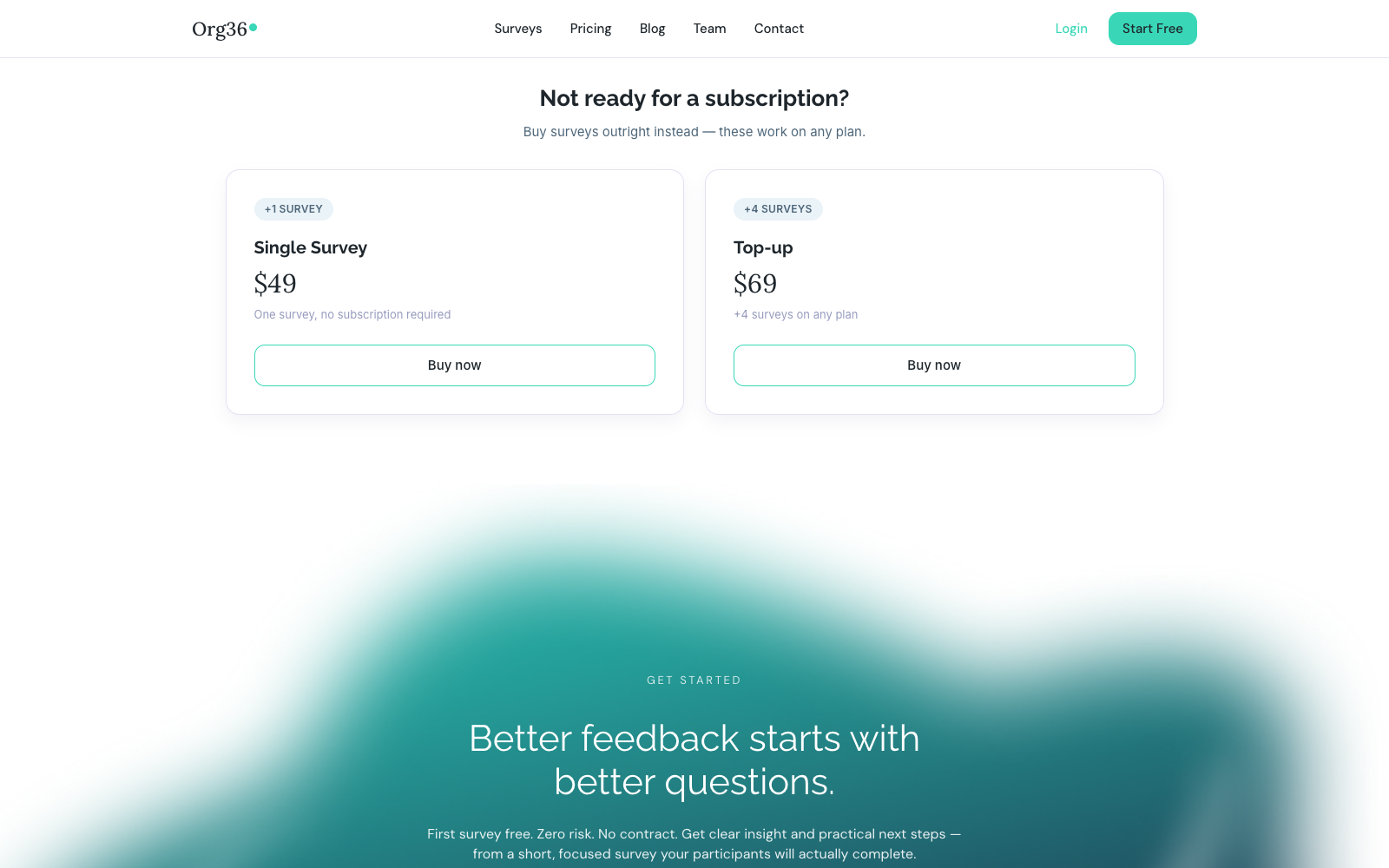
Need one more survey without changing plan? A Single Survey credit is $49; a Top-up pack adds four for $69 — neither requires a subscription.
org360.app/plans
Buy surveys outright — works on any plan, nothing recurring.
📚
Reference
Terms you'll see all over the app.
🔤 Glossary
Credit
Launches exactly one survey. Comes from your personal pool or a shared workspace pool.
Draft / Open / Closed
A survey's lifecycle — built but unsent, currently collecting responses, or finished.
eNPS
The employee Net Promoter Score question, added automatically to every survey.
Confidentiality
Standard or Highest — set when a survey is created, shown on both the survey card and its report.
Workspace credits
A shared pool anyone invited to the team can spend, separate from personal credits — the owner moves credits between the two in either direction.
Team Mode
The dashboard scoped to a workspace instead of your personal account — switched via the profile menu, top right.
Owner / Admin / Member
Workspace roles. Owner: full control, can't leave (delete instead). Admin: invite/remove members. Member: no management powers, can leave anytime.
Built as a reference for exploring the app. Every screenshot above was captured live from org360.app in September 2026; interfaces change, so treat exact numbers and copy as a snapshot rather than a promise.